Quick Guides / Tasks & Subtickets
How do I make step 2 wait until step 1 is done (sequential steps) in Zendesk?
Short answer
Use a phased task list so work is released only when the previous stage is complete. With SweetHawk Tasks and Subtickets, sequential phases keep only the current phase active and later phases locked, and subtickets for later phases are not created until the workflow reaches them.
How to do it with phased tasks
- In the Tasks and Subtickets app, open Phased task lists, click Add phased task list, and name it on the Settings tab.
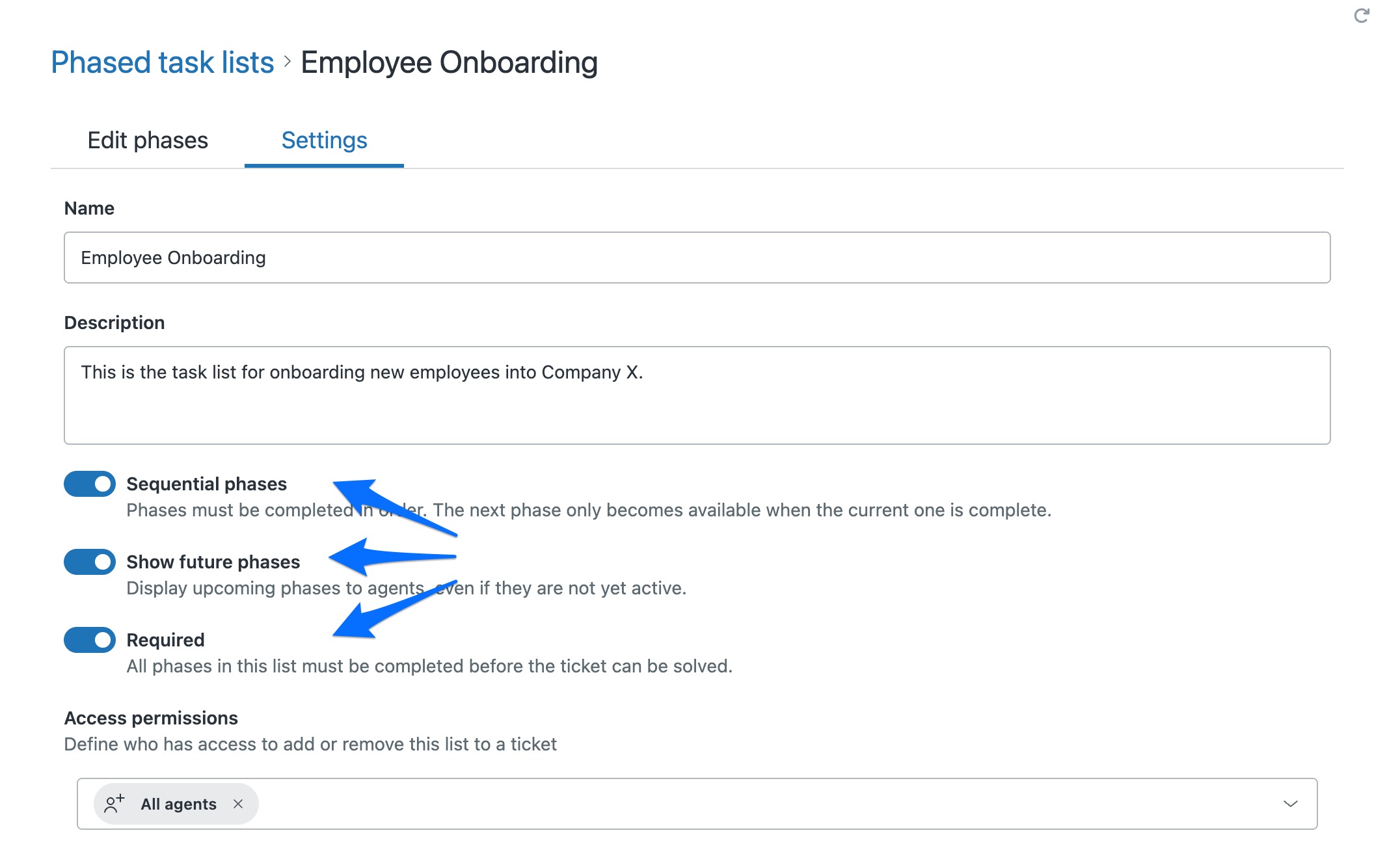
- Still on Settings, choose your options: Sequential phases so a phase only unlocks once the previous one is complete (this is what makes a later phase wait), Show future phases to let agents see upcoming phases, and Required so every phase must be completed before the ticket can be solved.
- Open the Edit phases tab and click Add phase (top right) for each stage. A phase can be fresh tasks or an existing task list reused, each with its own color.
- Save the phased task list.
- Back in the list of phased task lists, in the Trigger column click Create trigger so the list is added to matching tickets automatically.
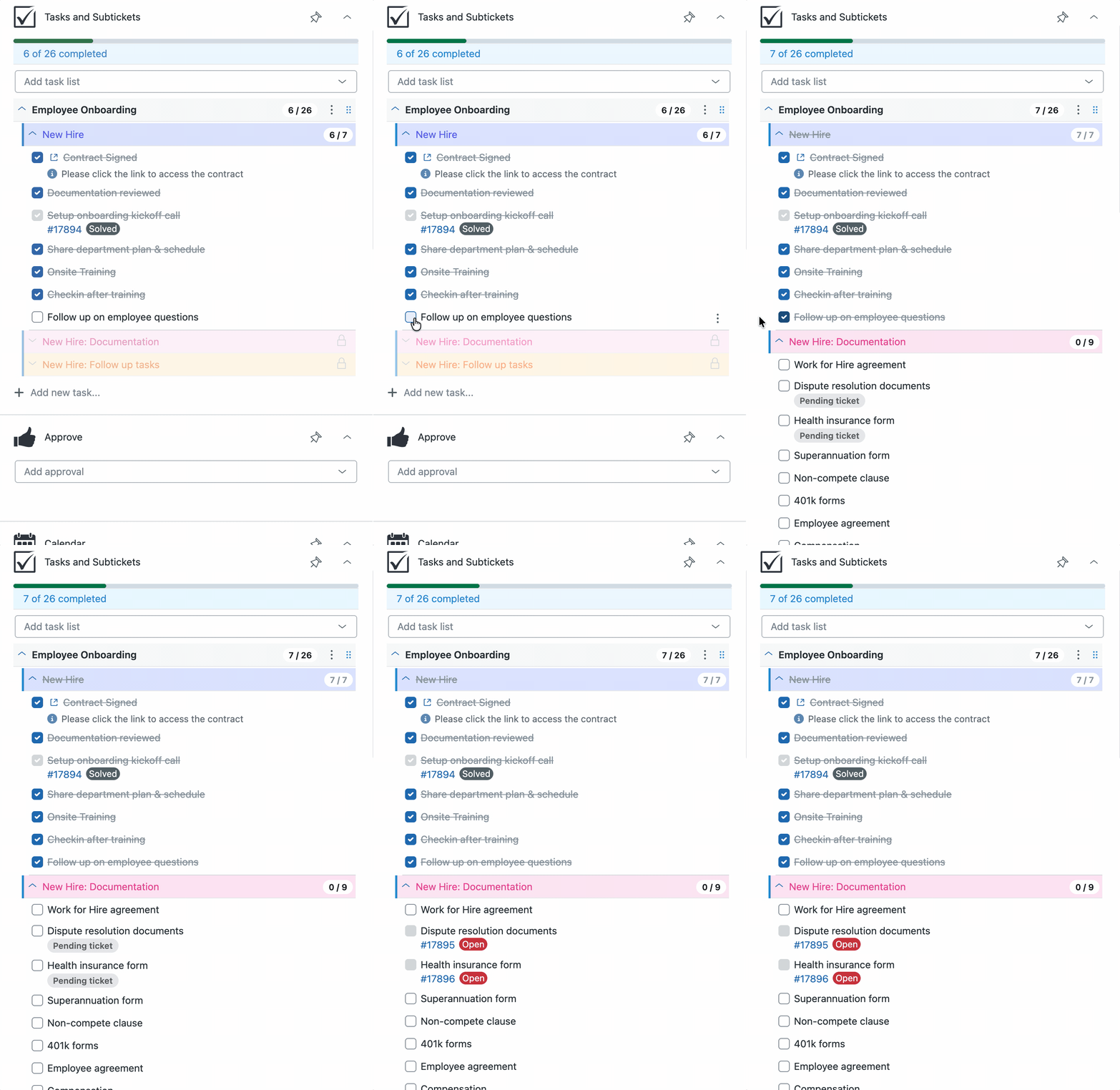
Sequencing matters when steps depend on each other: you do not want access provisioned before approval, or hardware shipped before the paperwork is done. Phases keep the order honest, so later teams pick up work only once it is ready.
Get it in your Zendesk
The quickest way is the SweetHawk Suite: one click installs Tasks & Subtickets and the rest of the suite into your account, with a free trial and no credit card. You can also install Tasks & Subtickets on its own from the Marketplace.