How do I do project management in Zendesk?
Project management in Zendesk is not one feature, it is a few SweetHawk apps working together. Structure the work with Tasks and Subtickets (a project parent, phased task lists and assignable subtickets), then add a Kanban board to watch it move stage by stage. Layer in Approve, Calendar, Recurring Tickets and Timers as the project needs them.
Plenty of teams live in Zendesk all day and do not want a separate project tool for work that starts as a ticket. You can do it in Zendesk with SweetHawk: a handful of apps cover the plan, the work, the board and the record, all in the same place. Start with these two:
 Tasks & Subtickets
 Kanban
Structure the work with Tasks & Subtickets
Make the project a parent ticket, then break it into a phased task list with a subticket for each workstream, assigned to its owner. Turn on Sequential phases so dependent stages run in order, and Required so the project cannot be solved until every stage is done. Each subticket's status rolls up onto the parent, so the whole plan lives on one ticket.
See the flow on a Kanban board
When you want to watch projects move rather than tick a checklist, add a Kanban board. Each ticket becomes a card you drag across columns to update its status.
- Under Kanban boards, click New Kanban board at the top right, and give it a name, for example Project management.
- Set the tag that decides which tickets appear. Any ticket carrying that tag shows as a card on the board, and tickets without it stay off it.
- Under Columns, at Board's column ticket field, click Select existing on the right and choose an existing drop-down field. This links the columns to a field you already have, rather than creating new ones, and each of its options becomes a column.
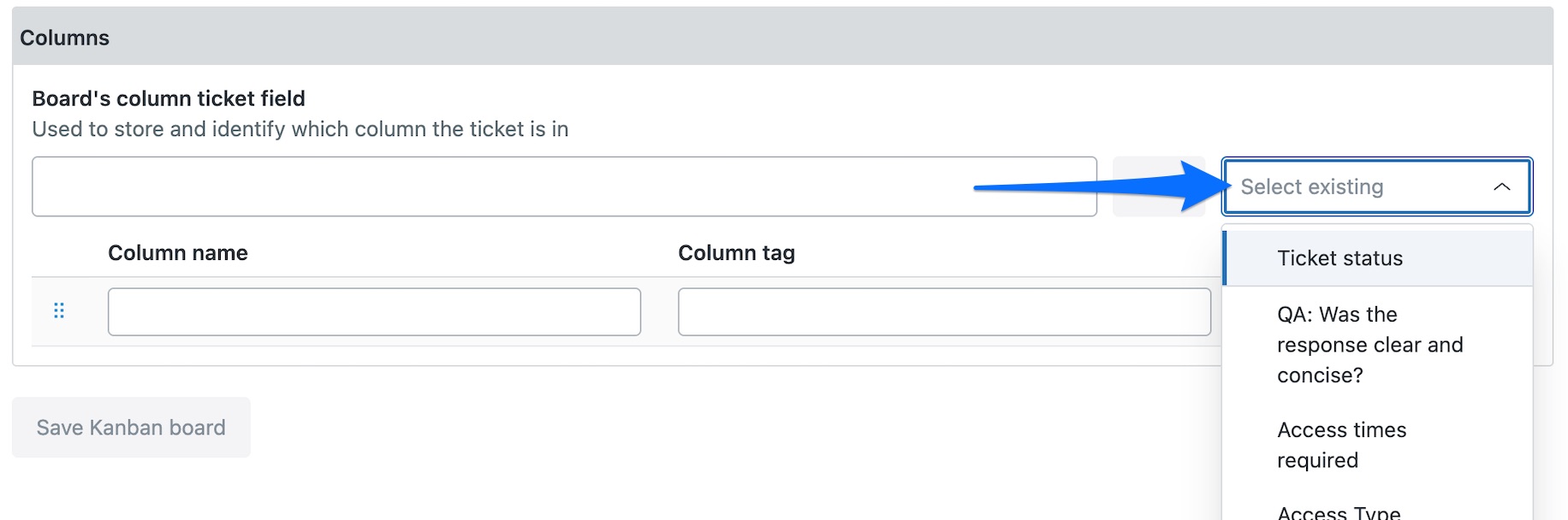
- Click Save Kanban board. You can now drag a card between columns to move a ticket along, and filter by assignee or date to focus.
- To open the board, click the Kanban board icon at the top right of the screen, then click Add the board to your list of boards at the top. Your board then appears, ready to use.
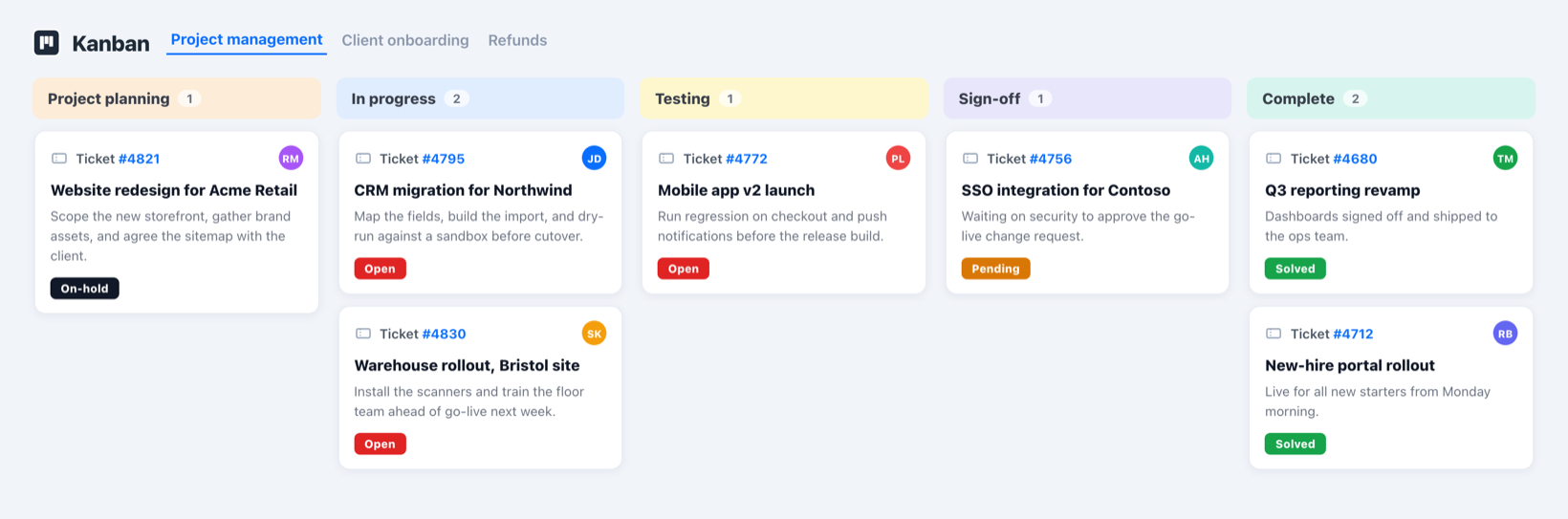
Full walkthrough: how to create a Kanban board.
Round it out
Layer these in as a project needs them:
 Approve
 Calendar
 Recurring Tickets
 Timers
- Approve gates a stage with a sign-off, scope and budget, or a go-live vote, before work continues.
- Calendar puts milestones and delivery dates on a shared calendar, synced to Google or Office 365.
- Recurring Tickets auto-spins up repeating project work, a weekly check-in or a quarterly review, with the checklist pre-attached.
- Timers track deadlines and burndown on each stage, so nothing quietly slips.
See how it all fits together on our Zendesk project management page.
The quickest way is the SweetHawk Suite: one click installs Tasks & Subtickets and the rest of the suite into your account, with a free trial and no credit card. You can also install Tasks & Subtickets on its own from the Marketplace.