How do I set up an SLA timer on a Zendesk ticket?
In the Timers app admin, add a Timer definition with a Duration, then use Create trigger on that row to build the Zendesk triggers that start, pause, resume and stop it.
How to do it with Timers
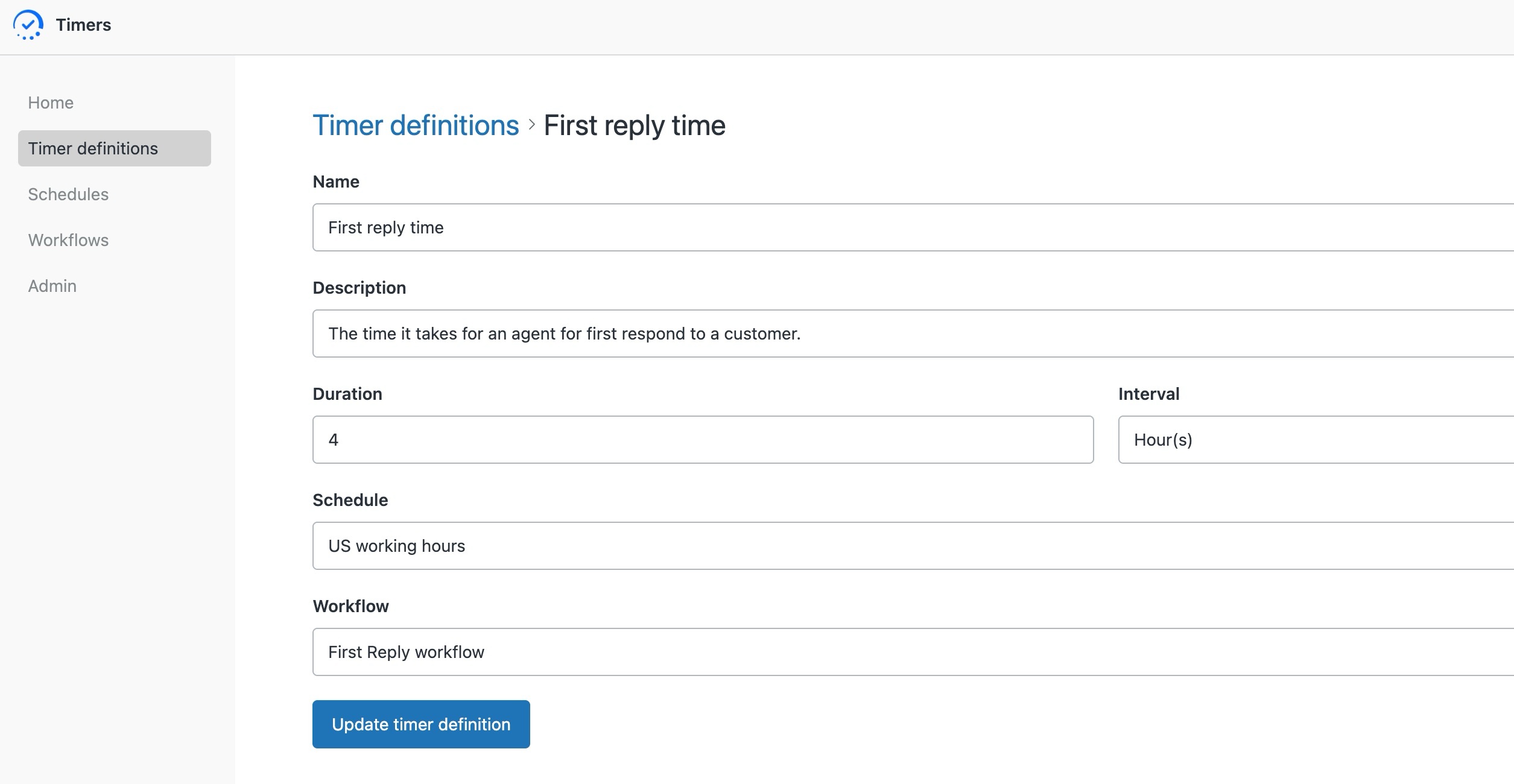
- Open the Timers app, click the admin icon in the left bar, and under Timer definitions click Add timer definition.
- Give it a Name and Description other admins will recognise, such as what it measures and which workflow it belongs to.
- Set Duration and Interval to the target, for example 4 and Hour(s), then click Create timer definition.
- Back in the list, click Create trigger under (Re)Start trigger, and under Stop trigger, Pause trigger or Resume trigger if you need them.
- For each one, follow the link at the top right, set the Zendesk trigger conditions for that moment, and save. First response starts on create and stops on the first public reply.
One clock per ticket is rarely enough. A first response target, a resolution target and an internal handover target are three different promises, and they start and stop at different moments. Timers treats each one as its own clock, driven by the trigger conditions you already know how to write.
Triggers or action flows. The steps above use Zendesk triggers, which suit a few timers with simple start and stop rules. Once timers depend on priority, or need to swap when it changes, the triggers multiply fast. A Zendesk action flow can run the same logic from one place, which is easier to admin: see how to start a different SLA timer for each ticket priority.
Keep one timer to one purpose. Overlapping logic in a single timer is the usual cause of a breach that nobody can explain.
The quickest way is the SweetHawk Suite: one click installs Timers and the rest of the suite into your account, with a free trial and no credit card. You can also install Timers on its own from the Marketplace.

How this compares to native Zendesk
Zendesk's native SLA policies cover first reply, next reply and resolution, one policy at a time, and you cannot see the clock counting on the ticket. Timers lets you run as many clocks as you like on the same ticket, start and stop each one on any trigger condition you can write, and shows agents a live countdown.
See how native Zendesk and Timers compare, feature by feature →