How do I warn agents before an SLA breaches in Zendesk?
Build a Timers Workflow, and in Relative event ticket updates at the bottom set a time before the timer ends, such as 30 minutes. Then add the ticket updates that raise the alarm: a tag, a priority change or an internal note.
How to do it with Timers
- In the Timers app, open Workflows, click Add workflow and give it a Name.
- The Actions section covers what happens when a timer is started, paused, resumed, swapped, stopped or ended. Stopped means the target was met and ended means it breached. For a warning, scroll past these to Relative event ticket updates at the bottom.
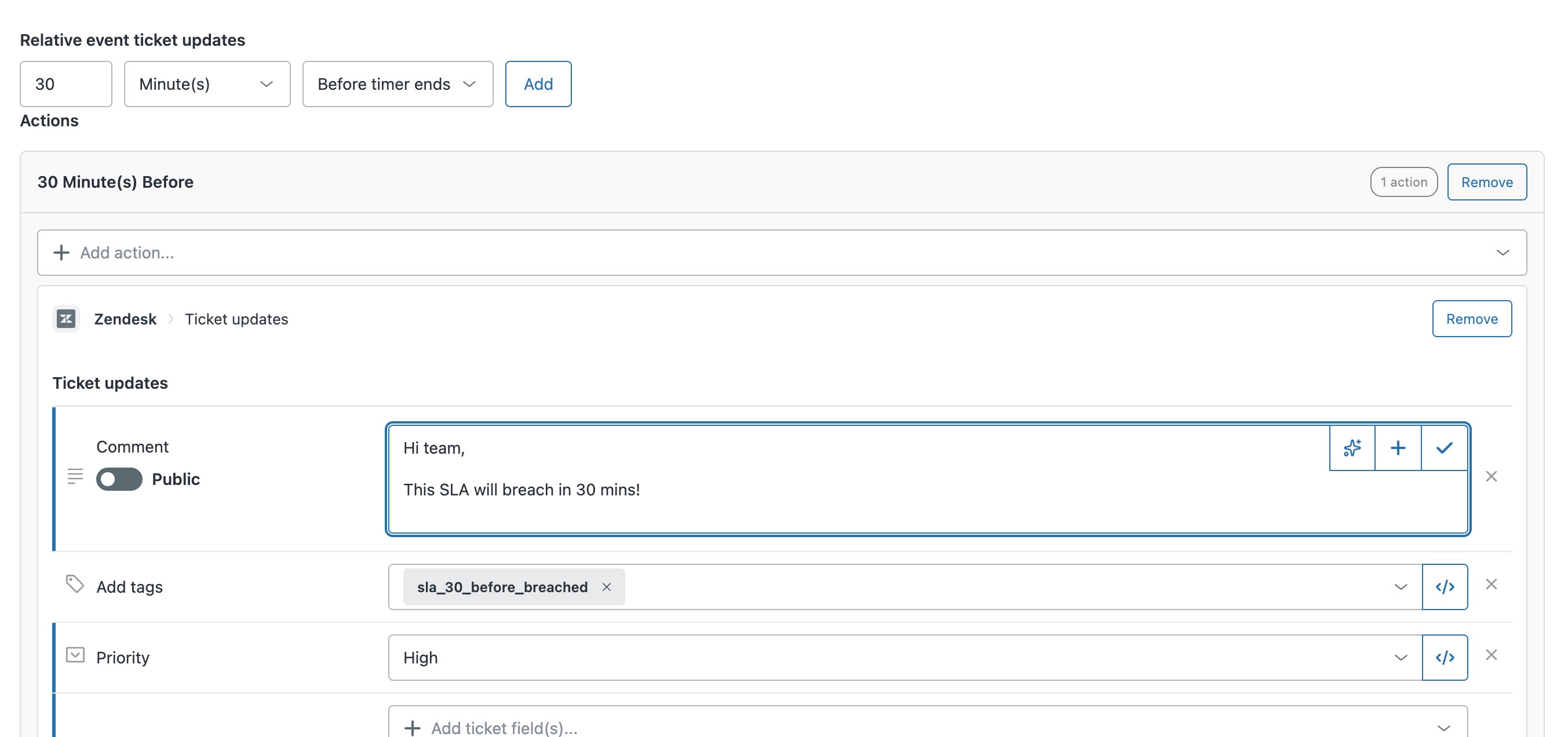
- Set how long before the deadline the warning fires, for example 30, Minute(s), Before timer ends, and click Add.
- In the new 30 Minute(s) Before block, click Add action..., choose Zendesk > Ticket updates, then use Add ticket field(s)... to add a tag such as sla_30_before_breached, set Priority to High, and add a Comment like "Hi team, this SLA will breach in 30 mins!" Leave Public off so it's an internal note.
- Click Create workflow at the bottom. Then go back to the timer you're warning about: open it under Timer definitions, choose your new workflow in the Workflow field and save. That pairs the workflow with the timer.
A breach notification tells you about a promise you have already broken. A warning before the deadline is the one worth having, because somebody can still do something about it.
Putting timer details into the update. Placeholders can put almost anything about the timer into a ticket field or comment, such as its name or when it ends. A text field like Comment takes them straight away: click the + on the right and pick from the list. Fields like Priority start in simple mode, which is a dropdown. Click the </> icon to switch to advanced mode, where you can type anything, and the + appears there too. If AI is turned on in your account, click the AI button instead and ask the Liquid assistant for the information you want.
The same workflow can also act when the timer ends, for example tagging the ticket as breached, so the warning and the breach record live in one place.
The quickest way is the SweetHawk Suite: one click installs Timers and the rest of the suite into your account, with a free trial and no credit card. You can also install Timers on its own from the Marketplace.