How do I report on SLA times in Zendesk Explore?
Write the timer's elapsed minutes into a custom Number ticket field with a Timers Workflow, and Explore picks the field up as a metric automatically.
How to do it with Timers
- In Zendesk Admin Center, open Fields, click Add field, choose Number, and name it after what it measures, such as First response time (mins).
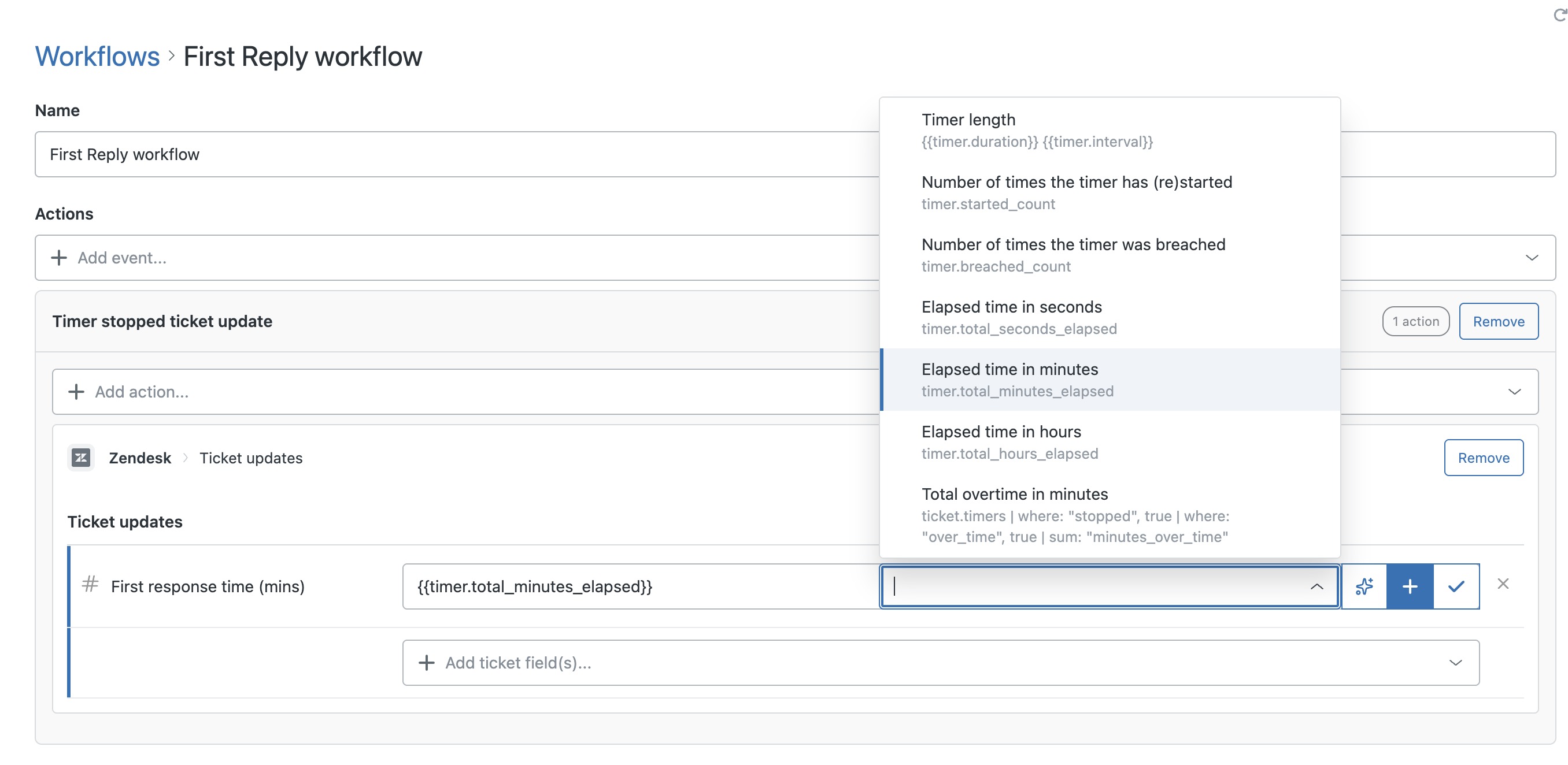
- In the Timers app, open Workflows, click Add workflow, and under Actions choose Timer stopped ticket update from + Add event....
- Under Ticket updates, pick the number field from + Add ticket field(s)..., click the + on its right and choose Elapsed time in minutes, which inserts {{timer.total_minutes_elapsed}}.
- Click Create workflow, then open your timer under Timer definitions, choose the workflow in the Workflow field and save.
- Test it on a ticket. Do whatever makes your start trigger fire, such as creating the ticket, then whatever makes the stop trigger fire, usually the outcome you're measuring, like the first public reply. The ticket's events log should show the minutes written to the field.
- In Explore, create a query on Support: Tickets, add your field under Metrics, and slice it by whatever column you report on.
Timer data lives in the app until you put it on the ticket. Once it is in a number field, it behaves like any other Zendesk field, which means Explore, dashboards and anything else you already report with.
Want hours instead of minutes? Choose Elapsed time in hours in step 3 and the field holds hours, with no maths needed in Explore. It rounds down to whole hours, so minutes are the better choice for shorter targets.
Not seeing the field in Explore? Explore only lists a field once a ticket has a value in it, so run the test first. Expect it within an hour on most Zendesk plans, or up to 24 hours on some lower plans.
The quickest way is the SweetHawk Suite: one click installs Timers and the rest of the suite into your account, with a free trial and no credit card. You can also install Timers on its own from the Marketplace.