How do I start a different SLA timer for each ticket priority in Zendesk?
Use a Zendesk action flow to Branch on ticket priority, then start the matching SweetHawk timer in each branch. Give all four timers the same Identifier so if the priority changes, SweetHawk swaps the running timer to the new SLA target without resetting the clock.
How to do it with Timers and action flows
- In Timers, create a timer definition for each priority, for example First Reply - Low, Normal, High and Urgent.
- Create a Zendesk trigger that runs when the ticket is created or its Priority changes, and adds a tag such as first_reply_timer_action.
- In Action Builder, start a flow when that tag is added. Remove the tag at the start of the flow so it can be added again the next time the priority changes.
- Add a Branch on Ticket priority, with paths for Low, Normal, High and Urgent. In each branch, add the SweetHawk Start Timer action and select the matching timer.
- Under Additional fields, give every Start Timer action the same Identifier, for example first_reply.
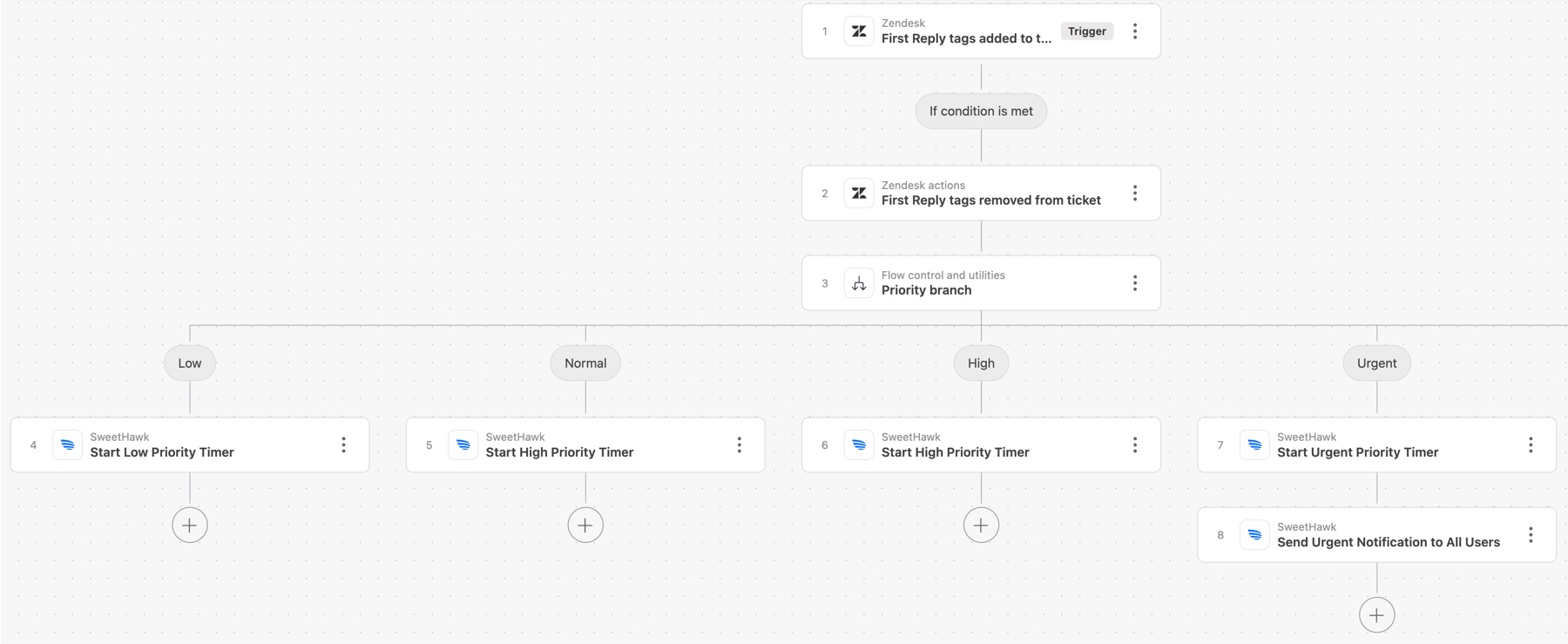
When the priority changes, the flow runs again and SweetHawk sees that a timer with the same identifier is already running. It swaps that timer to the new definition and keeps the time already elapsed. So if a Low ticket becomes Urgent after 30 minutes, those 30 minutes still count against the Urgent SLA.
For timers such as First Reply, which should only run once, add a tag such as first_reply_timer_stopped when the timer stops, and exclude tickets with that tag from the Zendesk trigger. That prevents a later priority change from starting the timer again.
The same pattern works for other SLA timers, and for SweetHawk's Pause Timer, Resume Timer and Stop Timer actions.
Action flows connect to Timers through the SweetHawk connector for Zendesk Action Builder, included with the SweetHawk Suite.
The quickest way is the SweetHawk Suite: one click installs Timers and the rest of the suite into your account, with a free trial and no credit card. You can also install Timers on its own from the Marketplace.

Setting it up? Our help center has the full walkthrough: Start & swap Timers with Zendesk Action Builder
Back to all quick guides