How do I apply business hours and holidays to a Zendesk SLA?
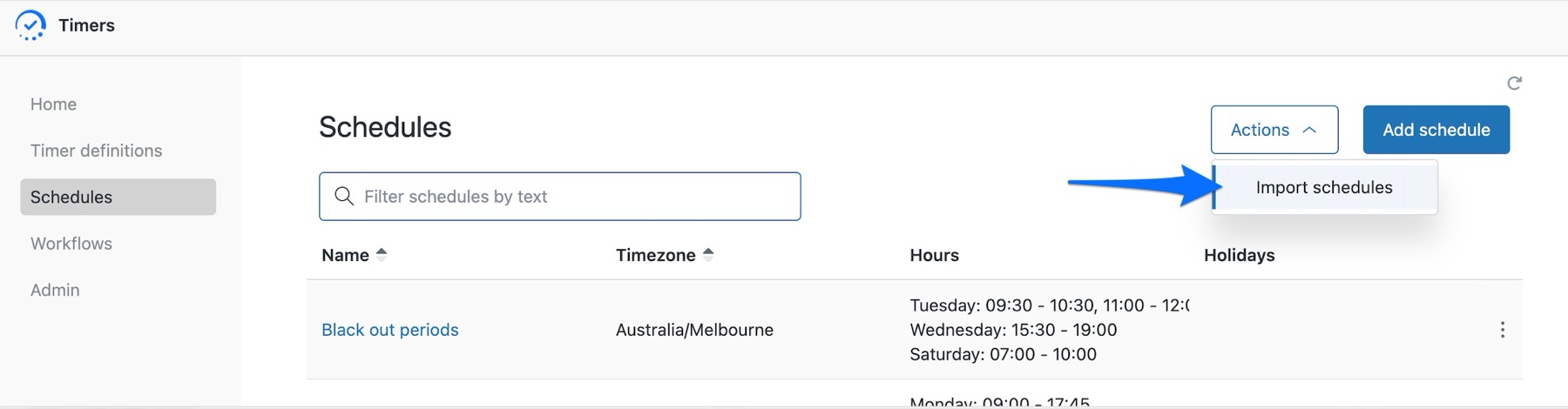
In the Timers app, open Schedules and either import your Zendesk schedules from the Actions dropdown at the top right, or build one with Add schedule, then select it in the timer's Schedule field.
How to do it with Timers
- In the Timers app, click Schedules in the left menu.
- If your business hours are already set up in Zendesk, click the Actions dropdown at the top right of the page, choose Import schedules and confirm with OK. Then skip to the last step.
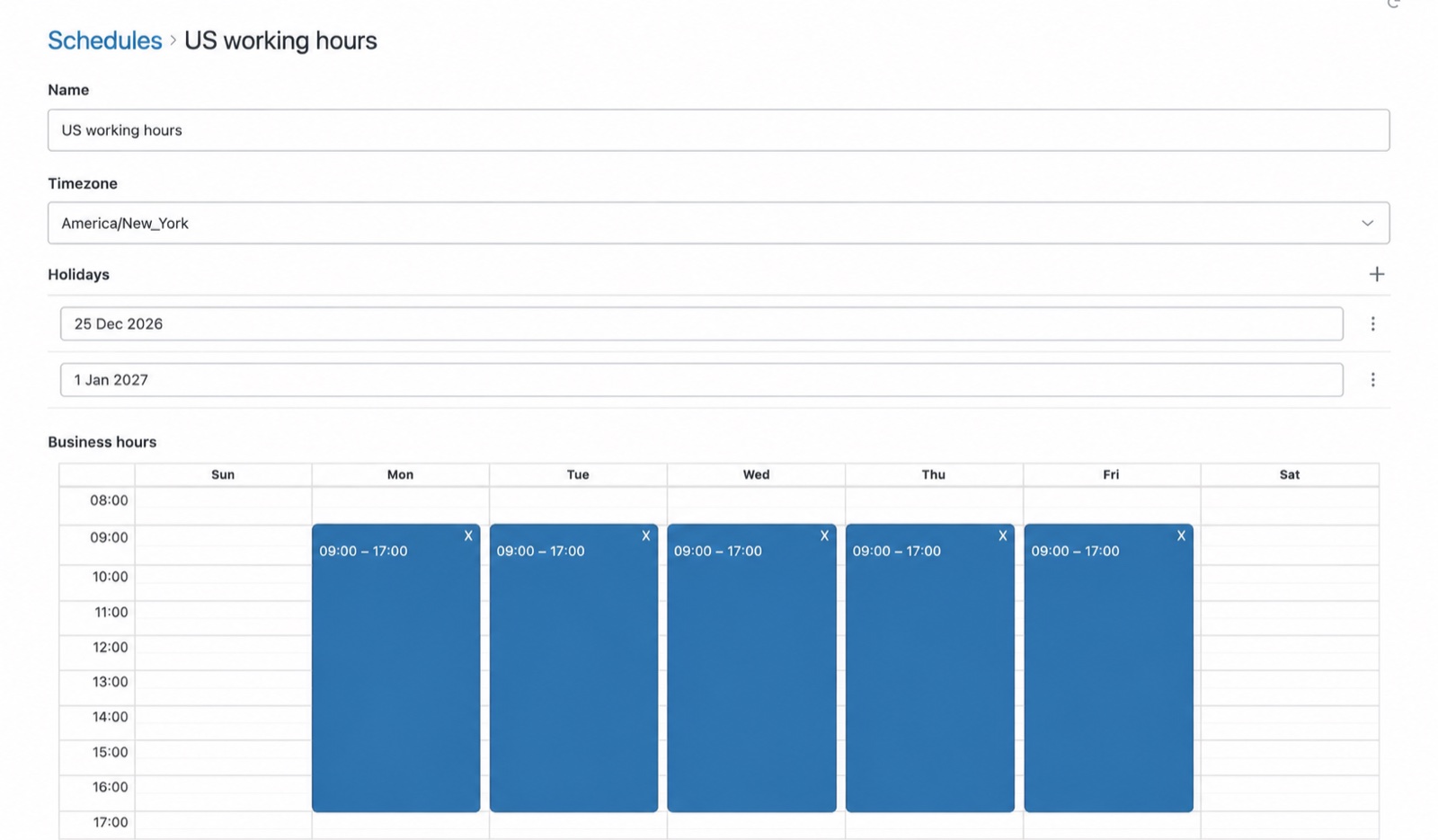
- To build one instead, click Add schedule, set a Name and the Timezone the hours belong to.
- Click + to add each holiday the clock should not run through, such as public holidays and the end of year shutdown.
- Drag the blue box across the working hours, or click it to type exact times, then click Create schedule.
- Open your timer under Timer definitions, choose the schedule in the Schedule field, and click Update timer definition.
A four hour target means four working hours, not four hours that run through the night and out the other side. Without a schedule, a ticket raised at 4.55pm on a Friday is halfway to breaching before anyone is at a desk.
If you already have business hours set up in Zendesk, import them. It's quicker than building a schedule from scratch, and your timers will count the same working hours your Zendesk SLAs do.
The quickest way is the SweetHawk Suite: one click installs Timers and the rest of the suite into your account, with a free trial and no credit card. You can also install Timers on its own from the Marketplace.