Quick Guides / Survey
How do I send an NPS survey in Zendesk?
Short answer
Create a survey with a 0-10 NPS rating question in the Survey app, then paste its snippet into a Zendesk trigger or automation email so it sends when your conditions are met.
How to do it with Survey
- Open the Survey app, go to Surveys, click Add survey, name it and click Save settings. The question editor opens.
- Enter your NPS question, for example 'How likely are you to recommend us to a friend or colleague?'. Rating type is already set to NPS (0-10), so leave it as is. Fill in the low and high labels (Rating 0 and Rating 10), then click Save question at the bottom.
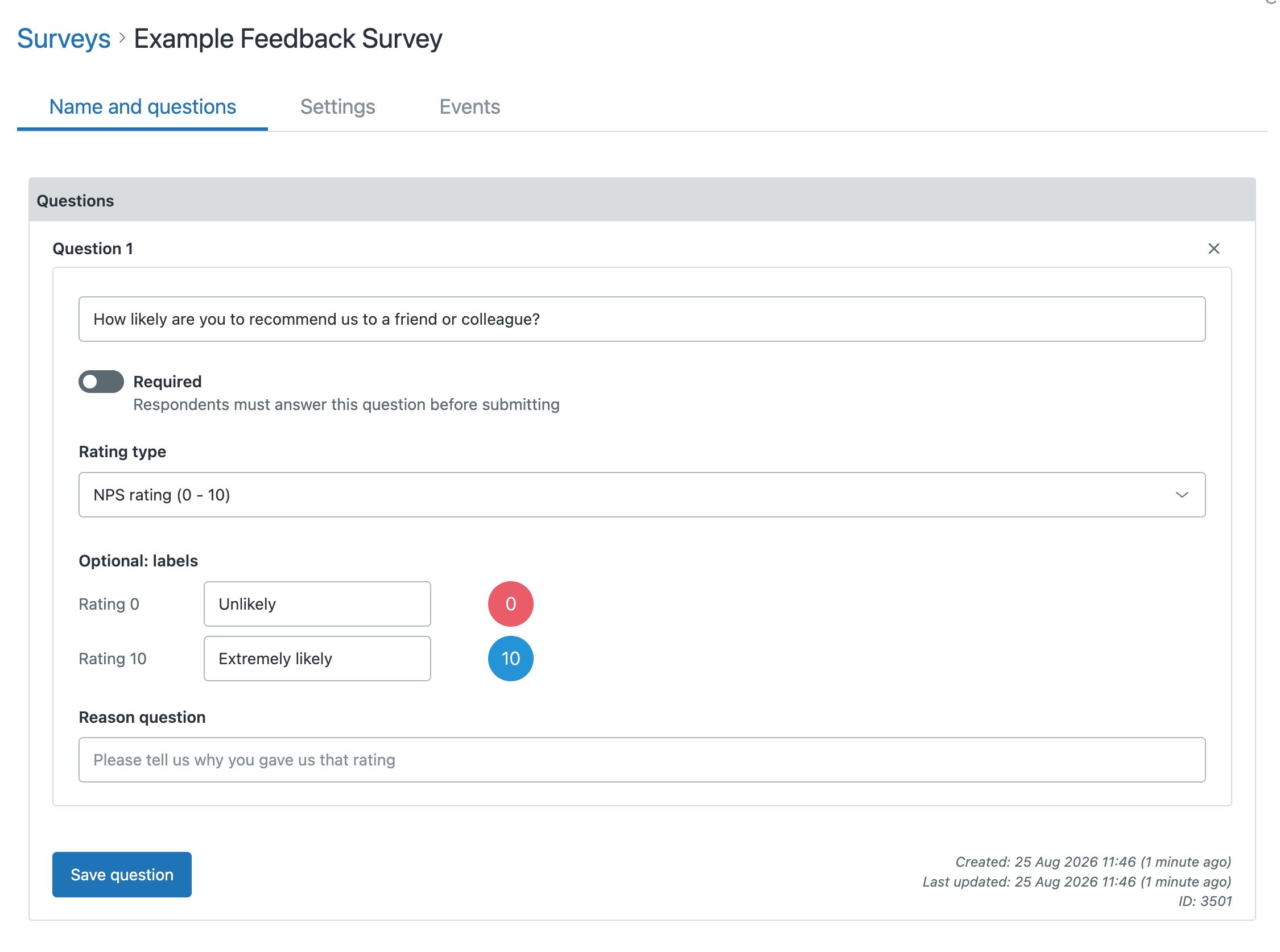
- On the Surveys list, copy the snippet next to your survey.
- In Zendesk Admin Center, create or edit a trigger or automation, set its conditions (for example ticket Solved), add an email action and paste in the snippet.
- Update a ticket to match those conditions, and the requester receives the NPS survey by email.
Zendesk's built-in satisfaction rating is a single good/bad question, so there is no native way to run a proper 0-10 NPS. Survey adds the 0-10 scale and fires from any trigger, not just on solve, so you capture the score while the experience is freshest.
Get it in your Zendesk
The quickest way is the SweetHawk Suite: one click installs Survey and the rest of the suite into your account, with a free trial and no credit card. You can also install Survey on its own from the Marketplace.