How do I send a multi-question customer survey beyond CSAT in Zendesk?
In the Survey app, create a survey and click Add question for each question you need, mixing types like 0-10, 5-star and free text, then send it from a Zendesk trigger or automation using its snippet.
How to do it with Survey
- Open the Survey app, go to Surveys, click Add survey, name it and click Save settings.
- Enter your first question, pick a Rating type (NPS 0-10, Star rating 1-5, Happy Neutral Sad, or Thumbs up/down), fill in the Option labels, add an optional Reason question, then click Save question.
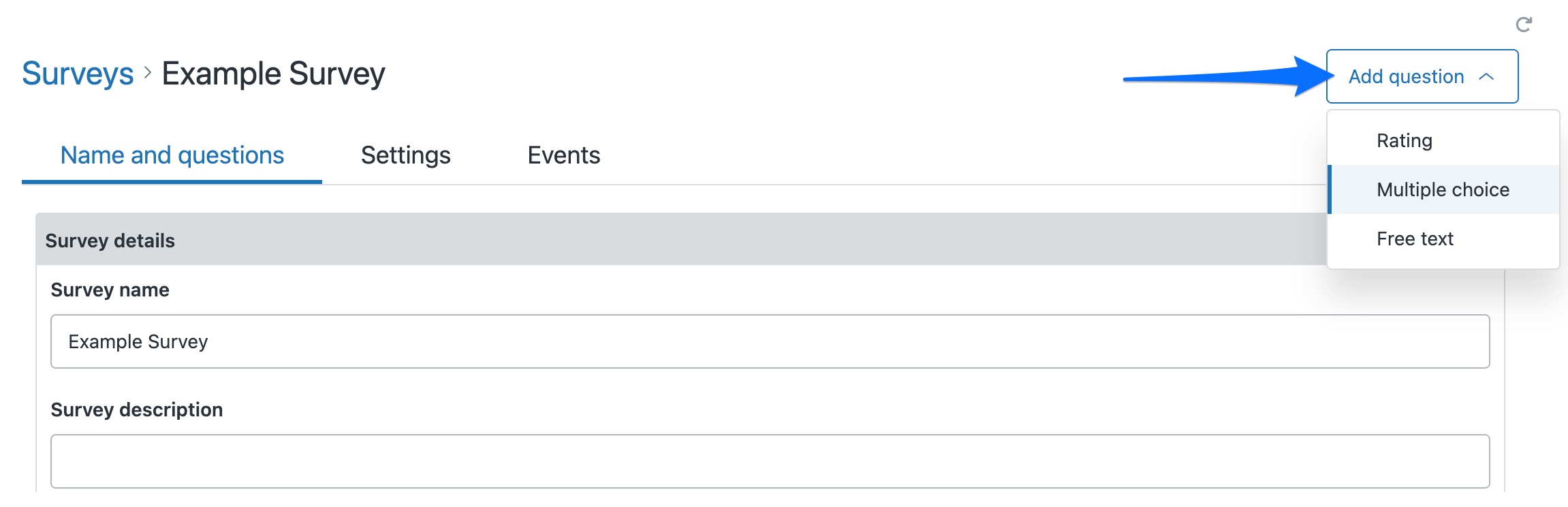
- Click Add question at the top right and repeat for each question. Rating questions are available on all plans; to add multiple choice (single or multi select) or free text questions you need to be on the Pro plan.
- For a conditional follow-up, set a question's When to display this question option so it only shows in certain cases, for example after a low or high score on an earlier question. Each question also has a Minimum time between asking option for when it was answered recently. A rating question's Reason question adds a free-text follow-up asking why, inline below the rating.
- Copy the snippet from the Surveys list, then in Zendesk Admin Center add it to a trigger or automation email action and set its send conditions.
One good/bad score rarely tells you why a customer felt that way. A short survey with a follow-up that appears only after a low or high score gets you the reason without a long form, so completion rates stay up.
The quickest way is the SweetHawk Suite: one click installs Survey and the rest of the suite into your account, with a free trial and no credit card. You can also install Survey on its own from the Marketplace.

How this compares to native Zendesk
Zendesk's native CSAT is a single satisfaction question (good/bad) plus an optional comment. Survey lets you ask any number of questions in one survey, mix every rating type, and add conditional follow-up questions that change based on the score.
See how native Zendesk and Survey compare, feature by feature →