How do I customize the CSAT survey (scale, questions, branding) in Zendesk?
In the Survey app, set the Rating type for the scale, click Add question for extra questions, use Branding for your logo and colors, and optionally sync the rating back to Zendesk's built-in CSAT.
How to do it with Survey
- Open the Survey app, open your CSAT survey or click Add survey, then Save settings.
- In the question editor, choose the Rating type (Star rating 1-5, NPS 0-10, Happy Neutral Sad or Thumbs up/down) and fill in the Option labels.
- Click Add question for follow-ups, then set a display condition so a different question appears after a good score versus a bad one.
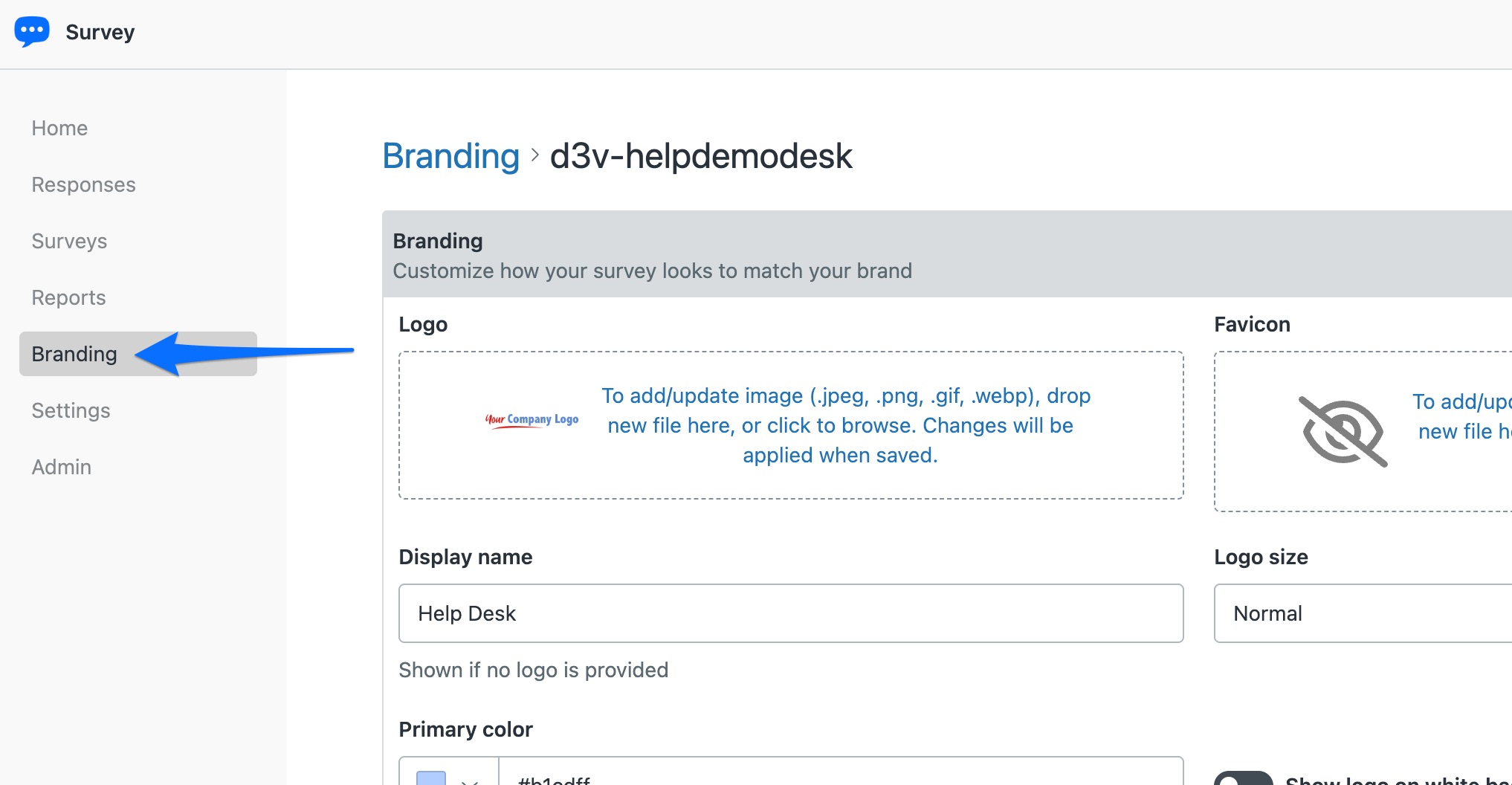
- Click Branding to set your logo and colors for the survey page. On the Enterprise tier, serve a different branded landing page per Zendesk brand.
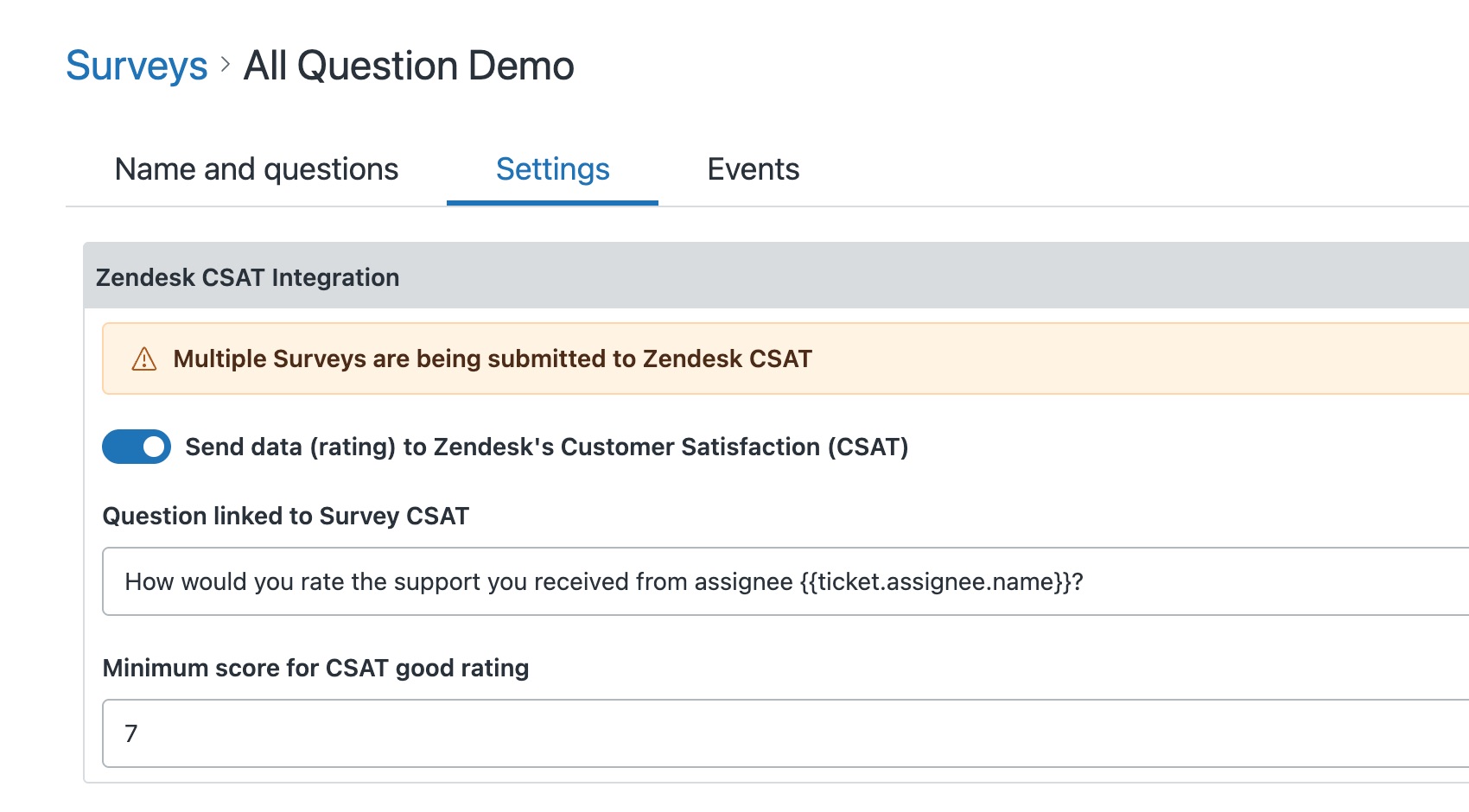
- To sync the rating back to native CSAT, open the survey from the Surveys list (this setting lives inside the survey, not the app's own Settings), open its Settings tab, and toggle on Send data (rating) to Zendesk's Customer Satisfaction (CSAT). Then pick the Question linked to Survey CSAT and set the Minimum score for CSAT good rating.
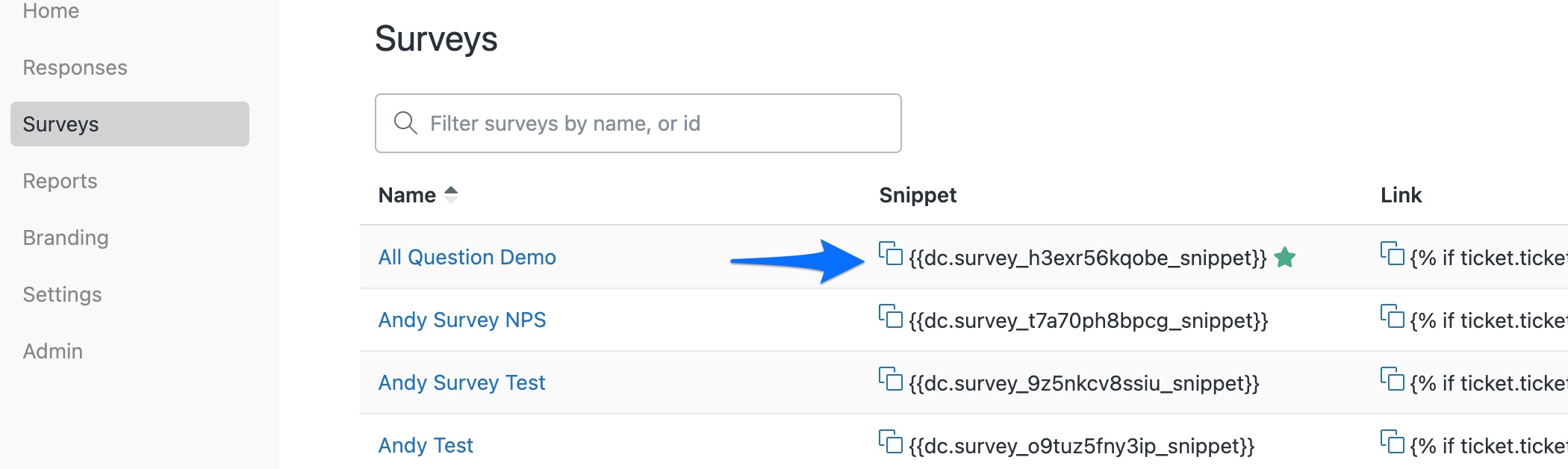
- To send the survey, go back to the Surveys list and copy its snippet from the Snippet column (the copy icon next to it). Paste that into your CSAT trigger or automation email in Zendesk Admin Center.
The default Zendesk satisfaction question is fixed and unbranded, which limits what you learn and how the survey looks. Survey lets you change the scale, brand the page and add follow-ups, while still syncing the core rating back to native CSAT so your existing reports keep working.
The quickest way is the SweetHawk Suite: one click installs Survey and the rest of the suite into your account, with a free trial and no credit card. You can also install Survey on its own from the Marketplace.

How this compares to native Zendesk
Zendesk's native CSAT centers on a single good/bad satisfaction question with limited scale and branding control. Survey lets you change the scale, add and condition extra questions and fully brand the page, and can still write its rating back into native CSAT so your existing Explore dashboards keep working.
See how native Zendesk and Survey compare, feature by feature →