How do I see my Zendesk tickets on a Kanban board?
In the Kanban app, create a board, check the Tag used to link ticket to this board, and under Board's column ticket field pick the dropdown field whose options become your columns.
How to do it with Kanban
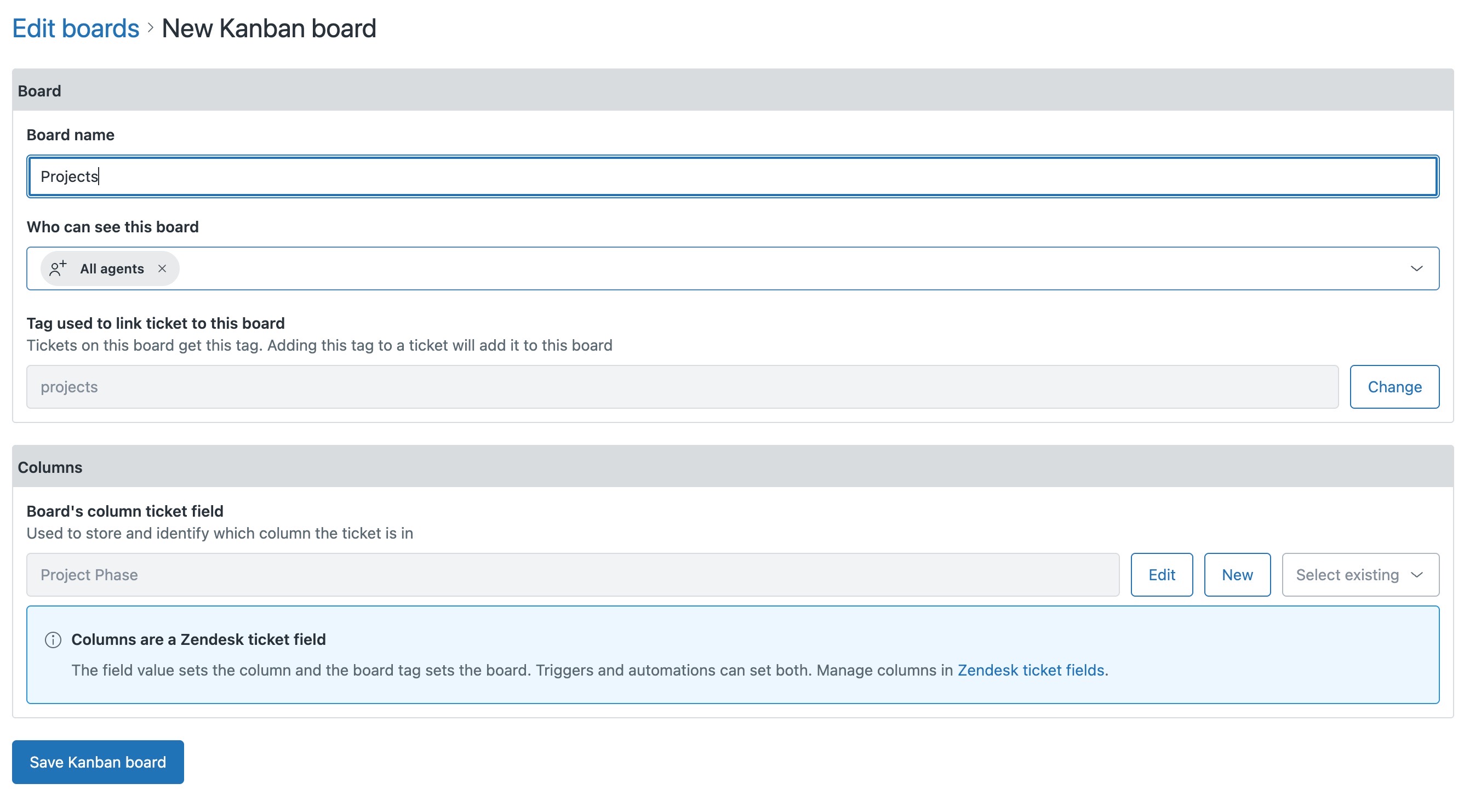
- Open the Kanban app from the Zendesk sidebar, go to Edit boards and start a New Kanban board.
- Give it a Board name that describes the work, such as Projects. The board's tag fills itself in from the name.
- Under Who can see this board, leave All agents or narrow it to specific roles, groups or agents.
- Check Tag used to link ticket to this board. Any ticket with this tag shows on the board. Keep the suggested tag, or click Change to use a tag your tickets already have, so they appear straight away.
- Under Board's column ticket field, click Select existing and choose the dropdown field that holds your stages, such as Project Phase. Each of its options becomes a column. Then click Save Kanban board.
A view gives you a list. A board gives you the shape of the work: how much is sitting in one stage, what has not moved this week, where the queue is backing up. The tickets are the same tickets, with the same fields and the same automations behind them.
No suitable field yet? Instead of Select existing, type a name for a new field, then add a Column name, Column tag and Color for each stage, using Add column for as many as you need. When you save the board, Kanban creates the ticket field with those columns as its options.
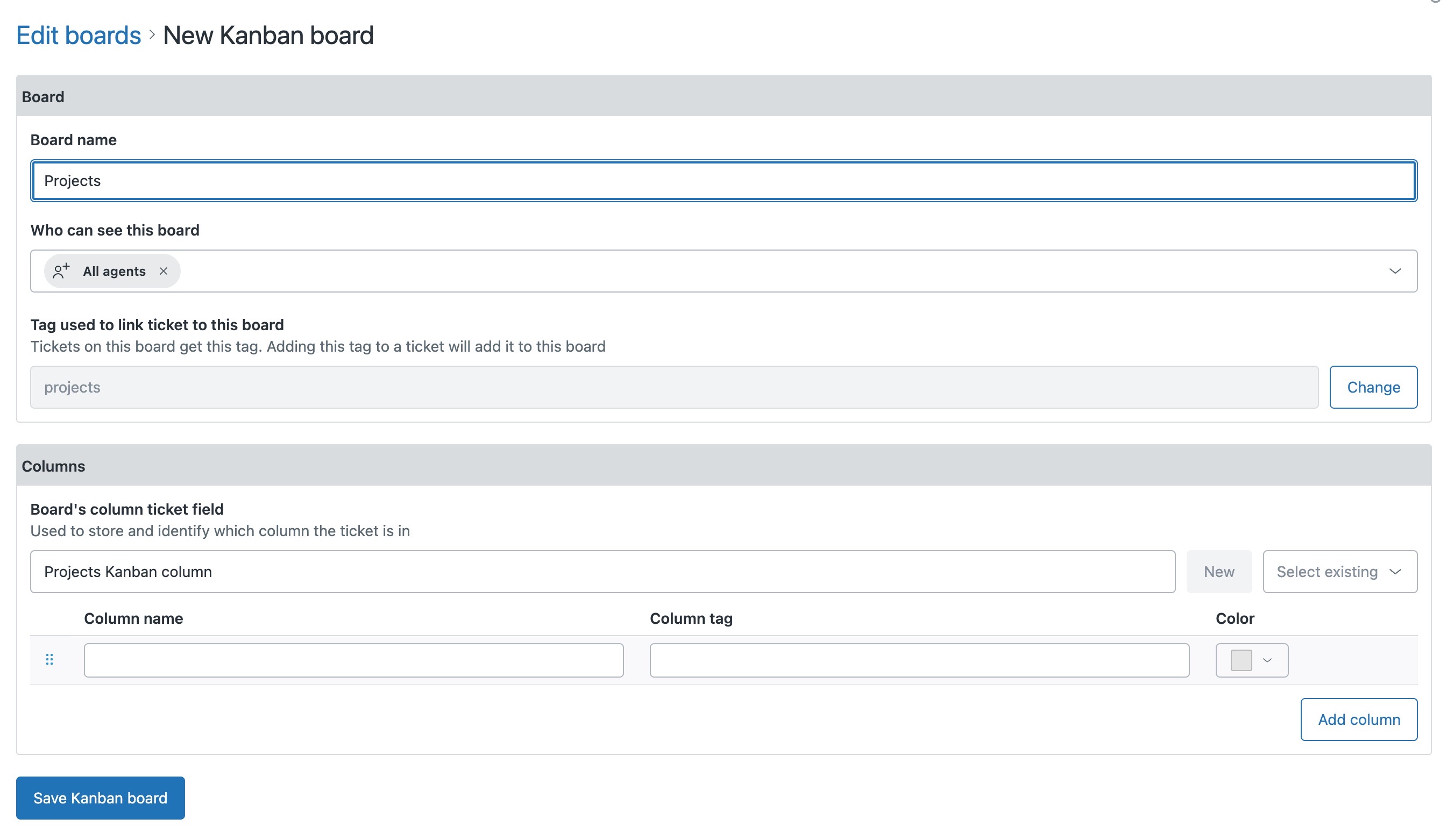
The tag decides which board a ticket is on, and the field decides its column. Triggers and automations can set both, so tickets can land on the board, in the right column, by themselves.
The quickest way is the SweetHawk Suite: one click installs Kanban and the rest of the suite into your account, with a free trial and no credit card. You can also install Kanban on its own from the Marketplace.