How do I control the columns on a Zendesk Kanban board?
Columns are the options on the board's column ticket field. In the Kanban app, open the board under Edit boards and click Edit on the field to color or hide columns. To add, rename or remove them, change the field's options in Zendesk.
How to do it with Kanban
- In the Kanban app, go to Edit boards and click the board you want to change, such as Projects.
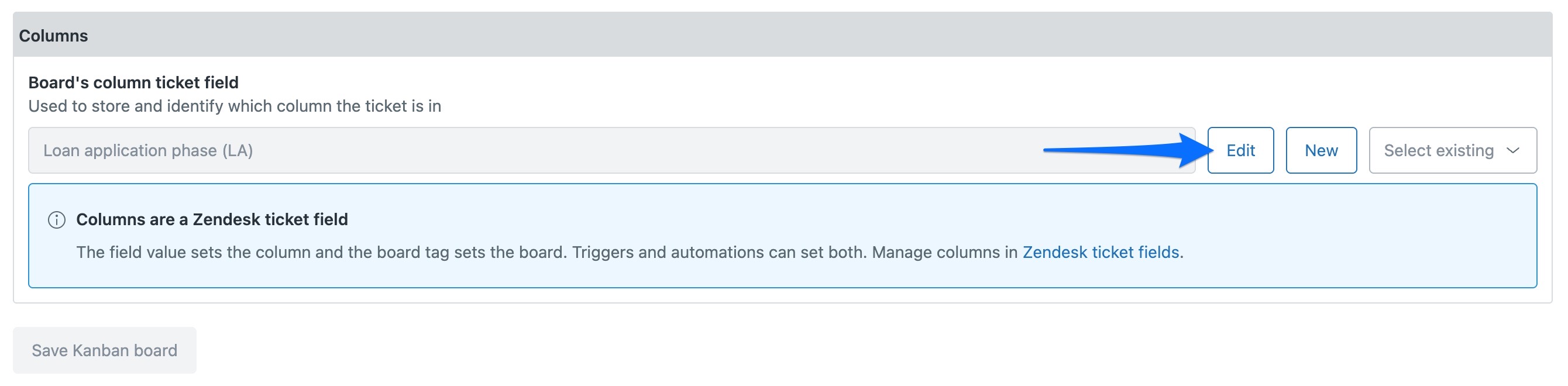
- Under Board's column ticket field, click Edit. Each option on the field is listed as a column, with its Column name and Column tag greyed out.
- Choose a Color for each column, click Hide on any you don't want on the board, then click Save Kanban board.
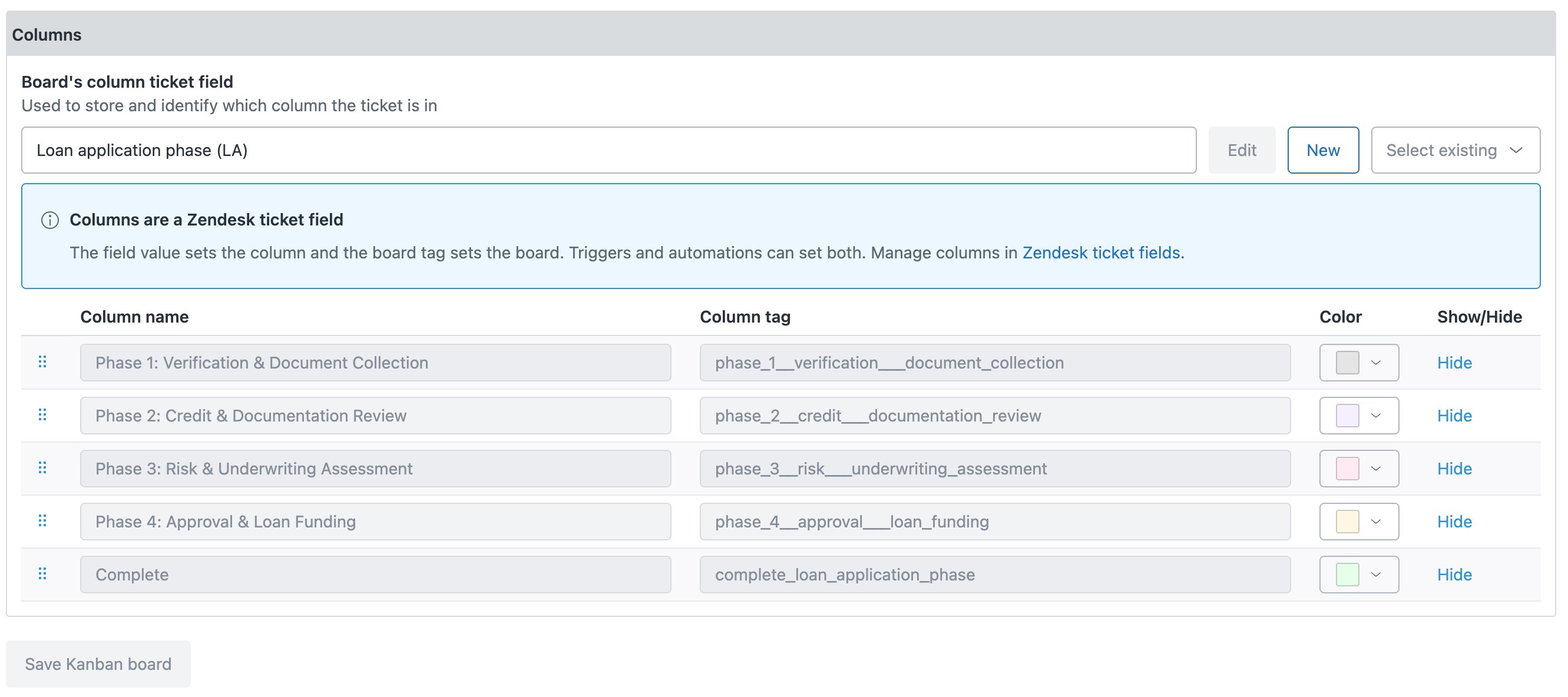
- To add, rename or remove columns, click the Zendesk ticket fields link in the blue box. It opens the field in Zendesk, where you change its options, and the board follows.
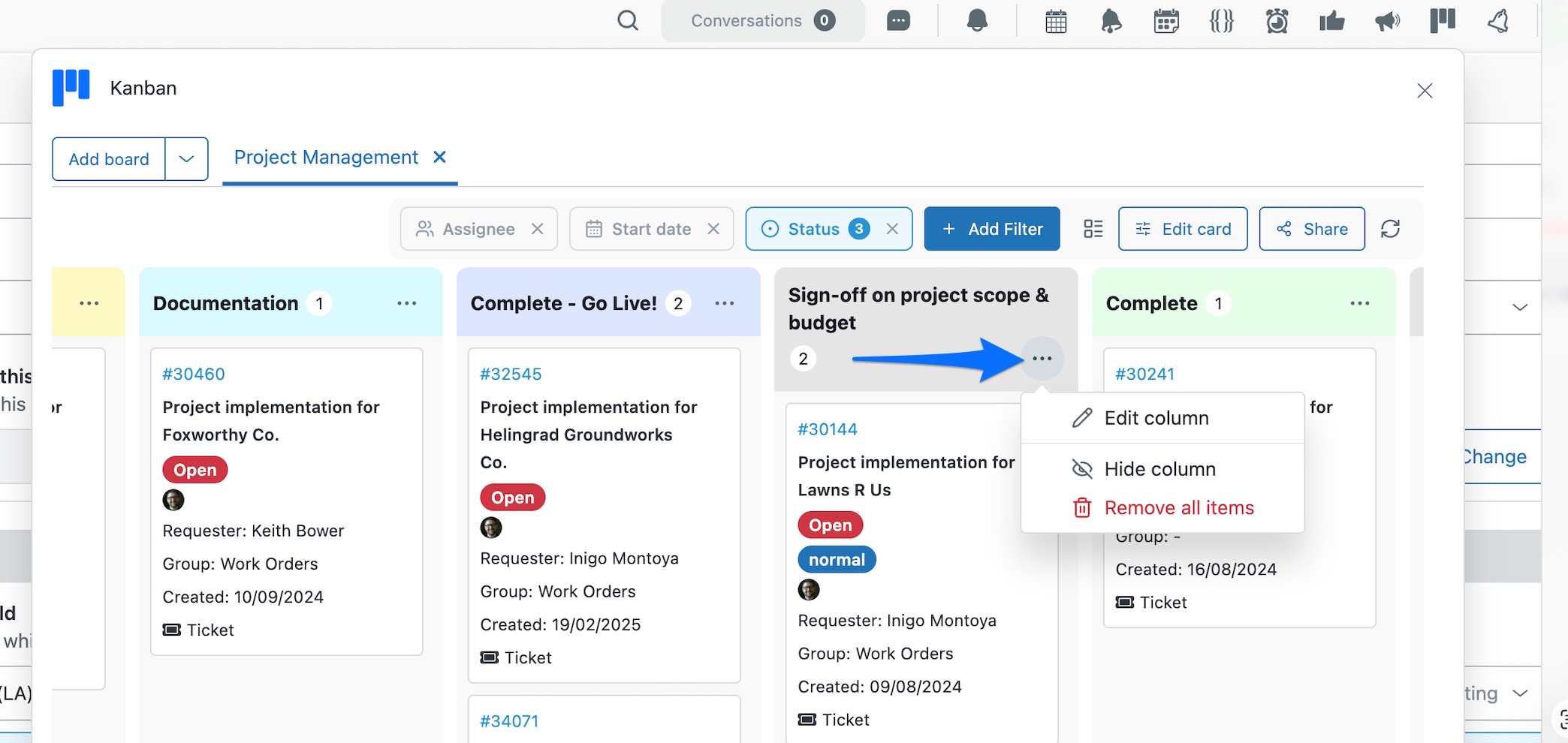
- On the board itself, click the ... beside a column name. Edit column changes its title or color, Hide column takes it off the board, and Remove all items clears every card out of that column, so use it carefully on a live board.
Because the columns are a ticket field, they are not a private board setting. The stage a card sits in is on the ticket, reportable in Explore and usable in triggers, and the board is just the clearest way to see it.
Hiding an option is the right move for stages you keep on the field for reporting but do not want cluttering the board, such as Cancelled or Duplicate.
The quickest way is the SweetHawk Suite: one click installs Kanban and the rest of the suite into your account, with a free trial and no credit card. You can also install Kanban on its own from the Marketplace.