How do I plan work on a board before creating Zendesk tickets?
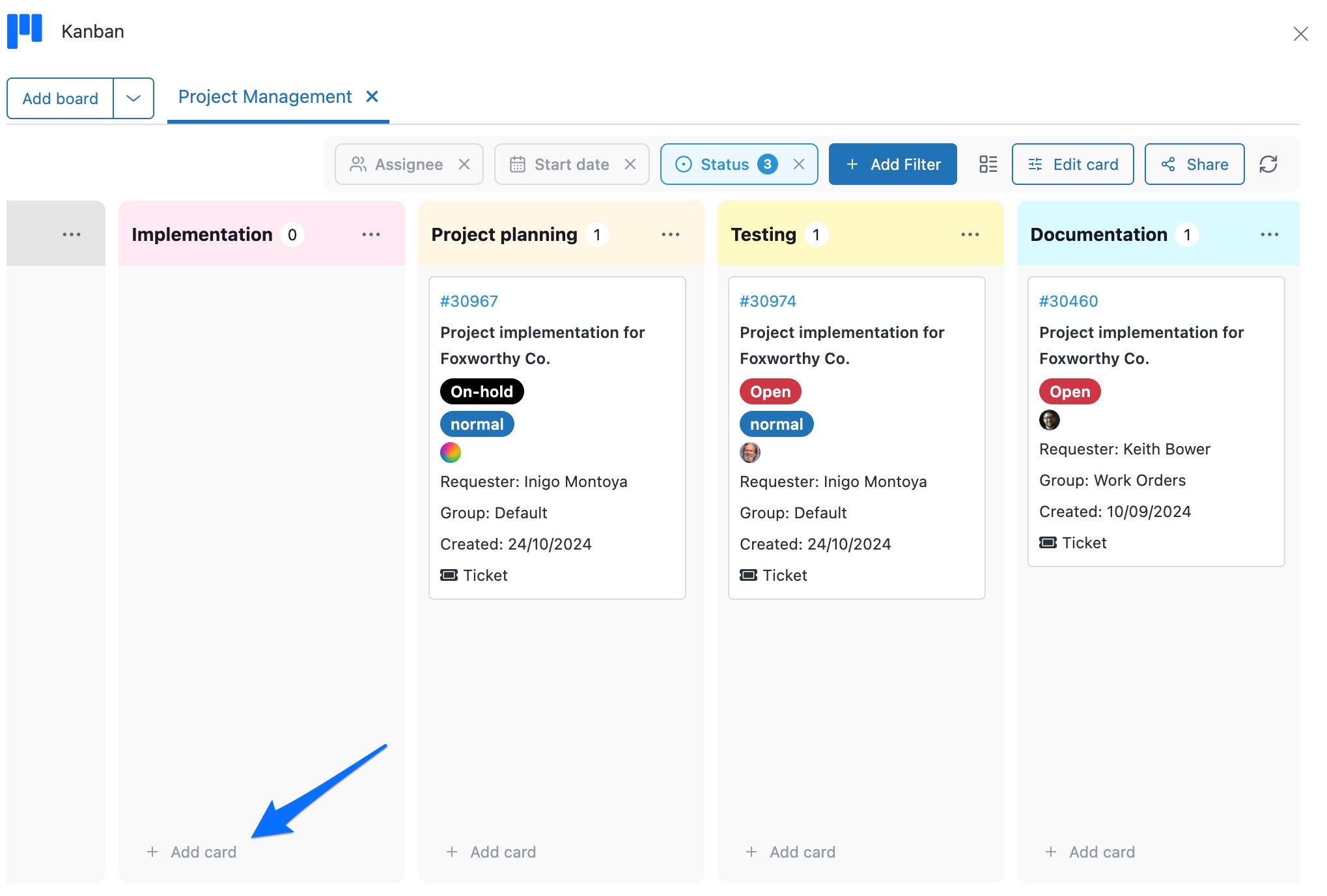
Click + Add card at the bottom of a column, type a Subject and click Add draft card. The card lives on the board without a ticket behind it. When it becomes real work, use Convert to new ticket on the card.
How to do it with Kanban
- Open a board in the Kanban app and click + Add card at the bottom of the column you want.
- In Add to board, on the New card tab, type a Subject, use + Add details if you want more, then click Add draft card. It sits on the board with no Zendesk ticket behind it. If it's ready to be a ticket now, click Create Zendesk ticket... instead.
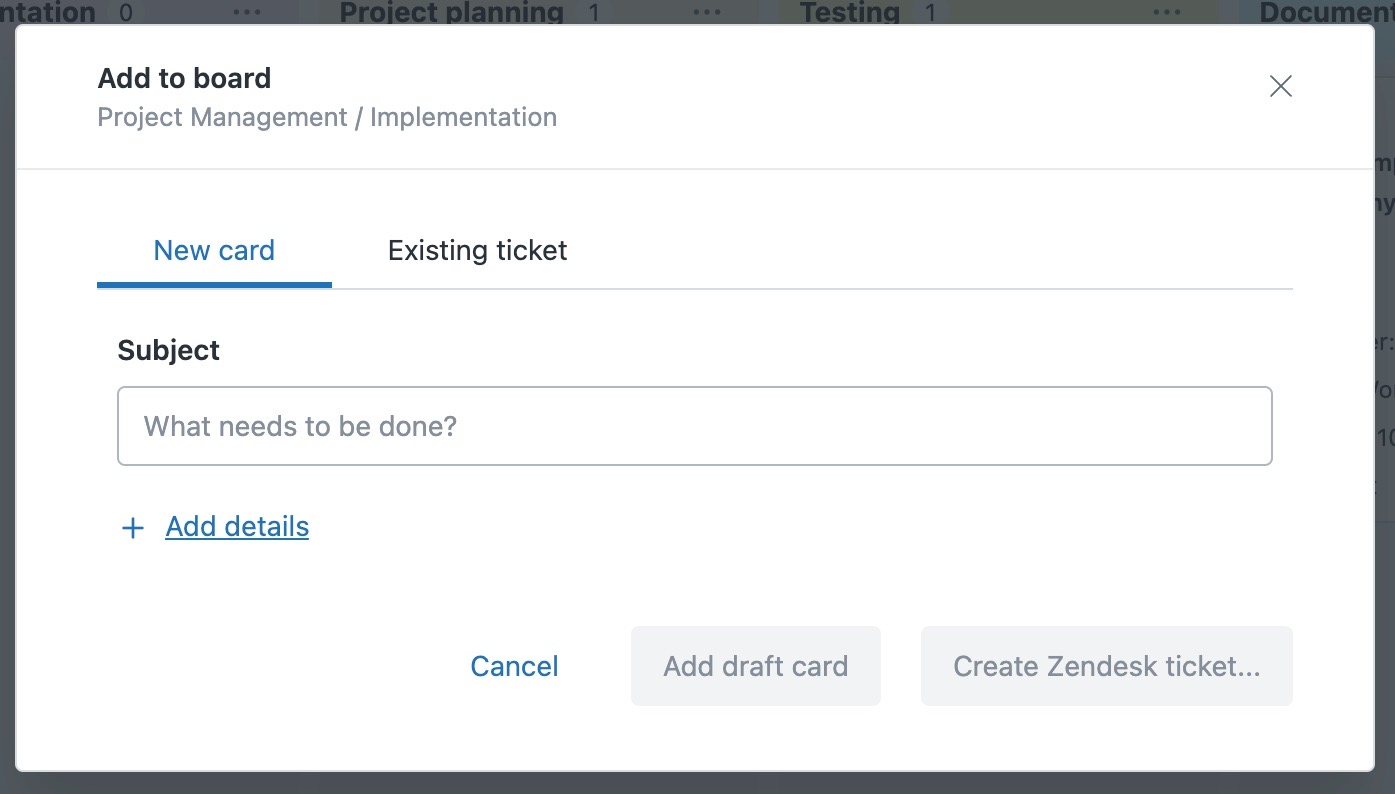
- To put a ticket that already exists on the board, open the Existing ticket tab and search for it. Searching by ticket ID is quickest.
- When a draft becomes real work, click the three dots on the card and choose Convert to new ticket.
- In the popup, set the ticket properties by hand or choose a ticket template to fill them in, then confirm.
Not every idea deserves a ticket on the day it is raised. Planning a quarter, scoping an implementation or triaging a wish list all generate items that would clutter a queue and distort your reporting if they arrived as tickets straight away.
Drafts keep that thinking on the board where the rest of the work is, and the conversion is one click when something graduates.
The quickest way is the SweetHawk Suite: one click installs Kanban and the rest of the suite into your account, with a free trial and no credit card. You can also install Kanban on its own from the Marketplace.