Quick Guides / Kanban
How do I create a Zendesk ticket from a card with the fields filled in?
Short answer
In the Kanban app, open Ticket templates and set the field values the work always needs. Pick that template when you use Convert to new ticket on a card.
How to do it with Kanban
- In the Kanban app admin, click Ticket templates in the left menu and create a template for a kind of work you raise often. Give it a Name.
- Under Access permissions, leave All agents or choose who can use the template.
- Under Ticket definition, set the fields that should be the same every time, such as the Requester, Tags, Ticket form, group and priority. To carry detail across from the card, use placeholders such as {{kanban_item.subject}} in Subject and {{kanban_item.description}} in Comment.
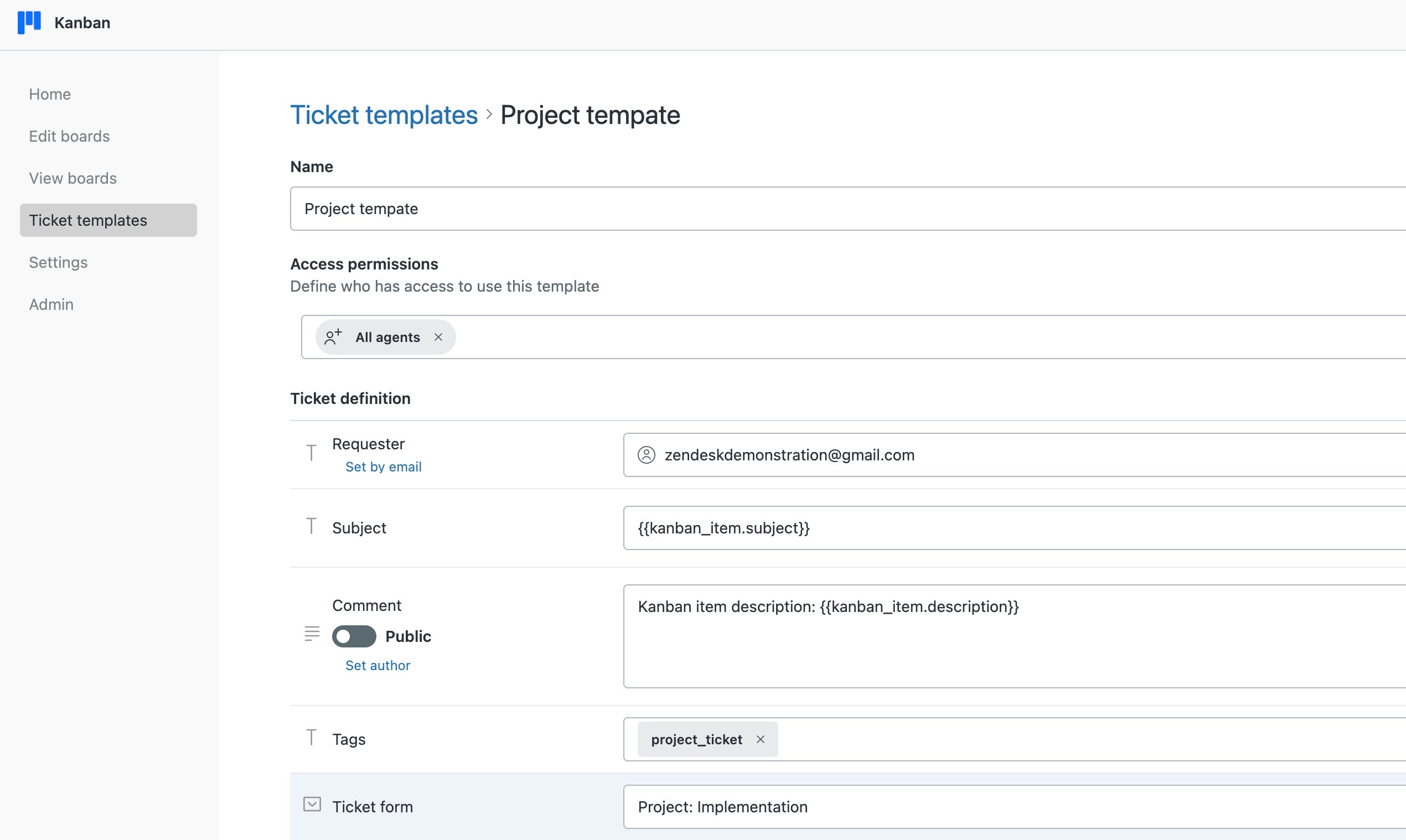
- Save the template. It is now offered whenever someone converts a draft card.
- On a draft card, click the three dots, choose Convert to new ticket, pick the template, and confirm.
Converting a card by hand means somebody picks the form, the group and the priority every time. A template sets them for you, so it's quicker and easier.
Placeholders are what stop the template being generic. The card's subject and detail flow into the ticket, so the work you've already done on the card carries straight over when you convert it.
Get it in your Zendesk
The quickest way is the SweetHawk Suite: one click installs Kanban and the rest of the suite into your account, with a free trial and no credit card. You can also install Kanban on its own from the Marketplace.