How do I move a Zendesk ticket between stages by dragging it?
Open the board from the Kanban icon in the Zendesk top bar and drag the card to another column. The dropdown field on the ticket updates to match, and editing that field on the ticket moves the card.
How to do it with Kanban
- In Zendesk Support, click the Kanban icon in the top bar, then Add board to choose which boards show as tabs.
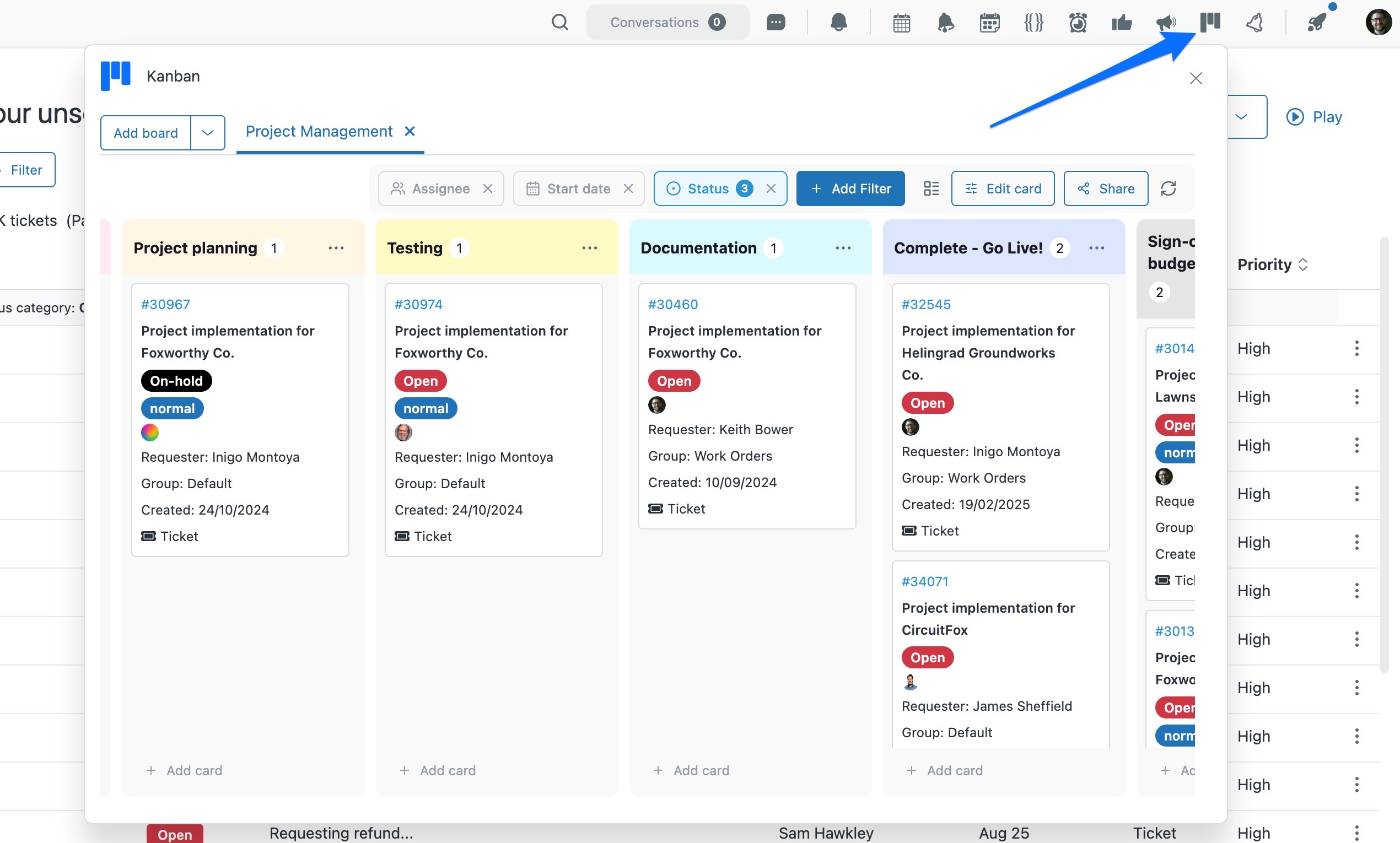
- Drag a card into another column. The dropdown field behind that column is written to the ticket, so triggers and reporting see a normal field change.
- It works the other way too: change the field on the ticket itself and the card moves to the matching column.
- Use Add Filter to narrow the board, for example by Assignee when you only want your own work, or by Status to see only what's still open.
- To take a ticket off a board, click the three dots on the card and choose Remove from board, which removes the linking tag.
Dragging a card is a field update with a nicer gesture. That matters more than it sounds: anything you have already built on that field, triggers, SLAs, reporting, keeps working exactly as it did, whether the change came from the board or the ticket.
Cards show live ticket state, including status and assignee, so the board does not drift from the queue it came from.
The quickest way is the SweetHawk Suite: one click installs Kanban and the rest of the suite into your account, with a free trial and no credit card. You can also install Kanban on its own from the Marketplace.