How do I get notified when a Zendesk ticket reaches a stage?
Each column is a dropdown option, and each option has its own tag. Build a Zendesk trigger on that tag, then attach a notification to it in the Notify app so the right people hear about it.
How to do it with Kanban and Notify
- In Admin Center, go to Objects and rules > Fields and open the board's column field. Under Field values, note the Tag beside the stage you care about, for example 4_project_implementation.
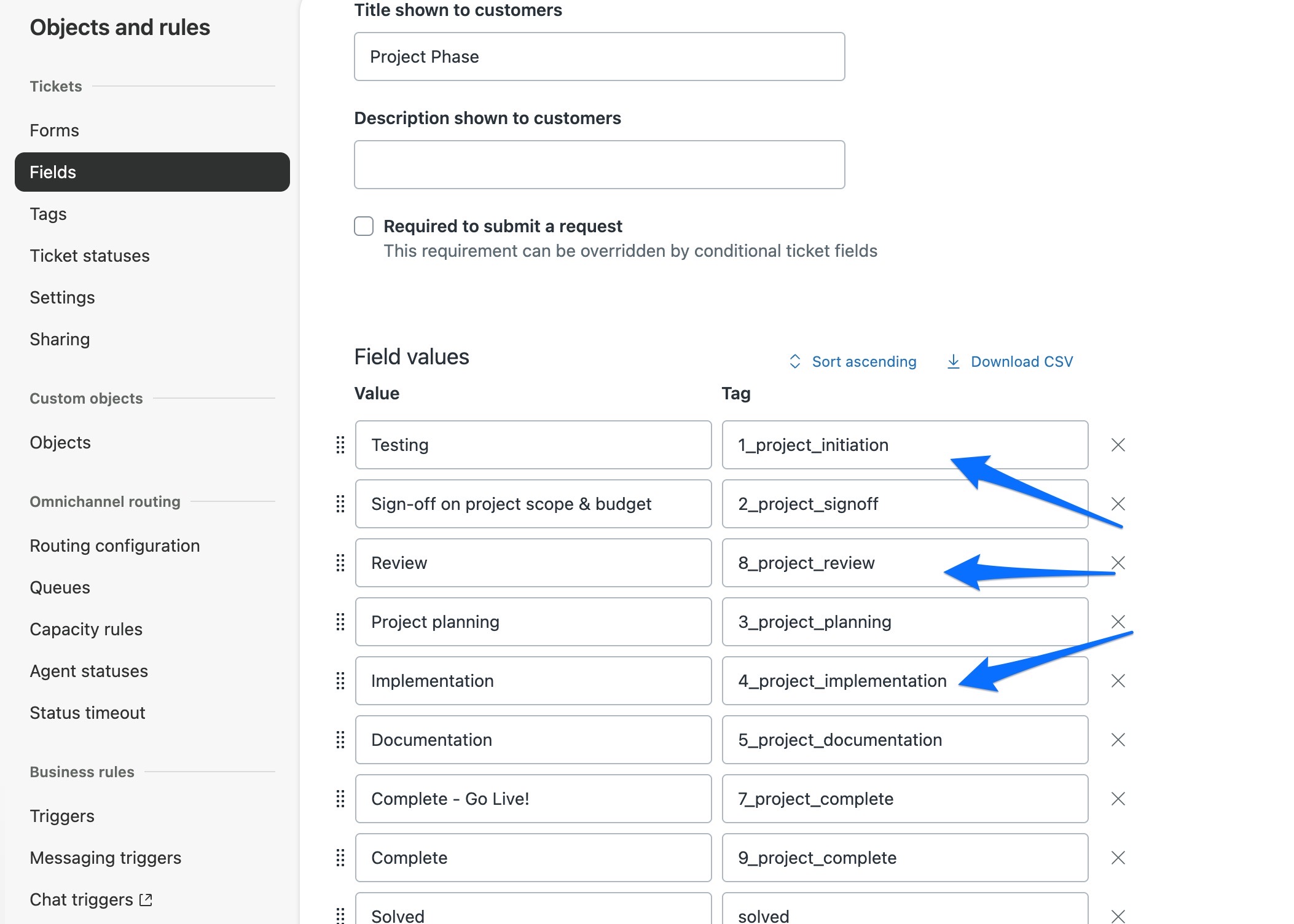
- Go to Objects and rules > Triggers, click Add trigger and name it after the stage, such as Project reached implementation.
- Under Meet ALL of the following conditions, add Tags Contains at least one of the following 4_project_implementation, and Tags Contains none of the following 4_project_implementation_notified.
- Under Actions, add Add tags 4_project_implementation_notified, so the alert goes out once rather than on every update. Then click Create to save the trigger.
- In the Notify app, open Notification templates and click Add template. Choose your new trigger in Trigger at the top, then set the message and recipients as usual and click Create notification.
- Test it by dragging a card into that column. The field changes, the tag is added, the trigger fires and the notification pops up.
Boards are good at showing you what happened once you look. A notification is for the moments you cannot afford to wait for someone to look, like a change reaching go live on a Friday afternoon.
Triggers or action flows. The steps above use a Zendesk trigger, but a Zendesk action flow can run the same logic. That suits teams already building their automations in action flows, or alerts with more branches than one trigger handles comfortably.
The tag is the part worth remembering. Every dropdown option has one, which makes any column on any board usable as a trigger condition.
The quickest way is the SweetHawk Suite: one click installs Kanban and the rest of the suite into your account, with a free trial and no credit card. You can also install Kanban on its own from the Marketplace.