How do approvers respond to a Zendesk approval in the approval portal?
With the Approve app, approvers respond straight from the approval email, or open the approval portal to see the full request first. The portal shows everything waiting on them in one queue, with Approve, Decline and Abstain on every request. No Zendesk seat or password needed.
How approvers respond with Approve
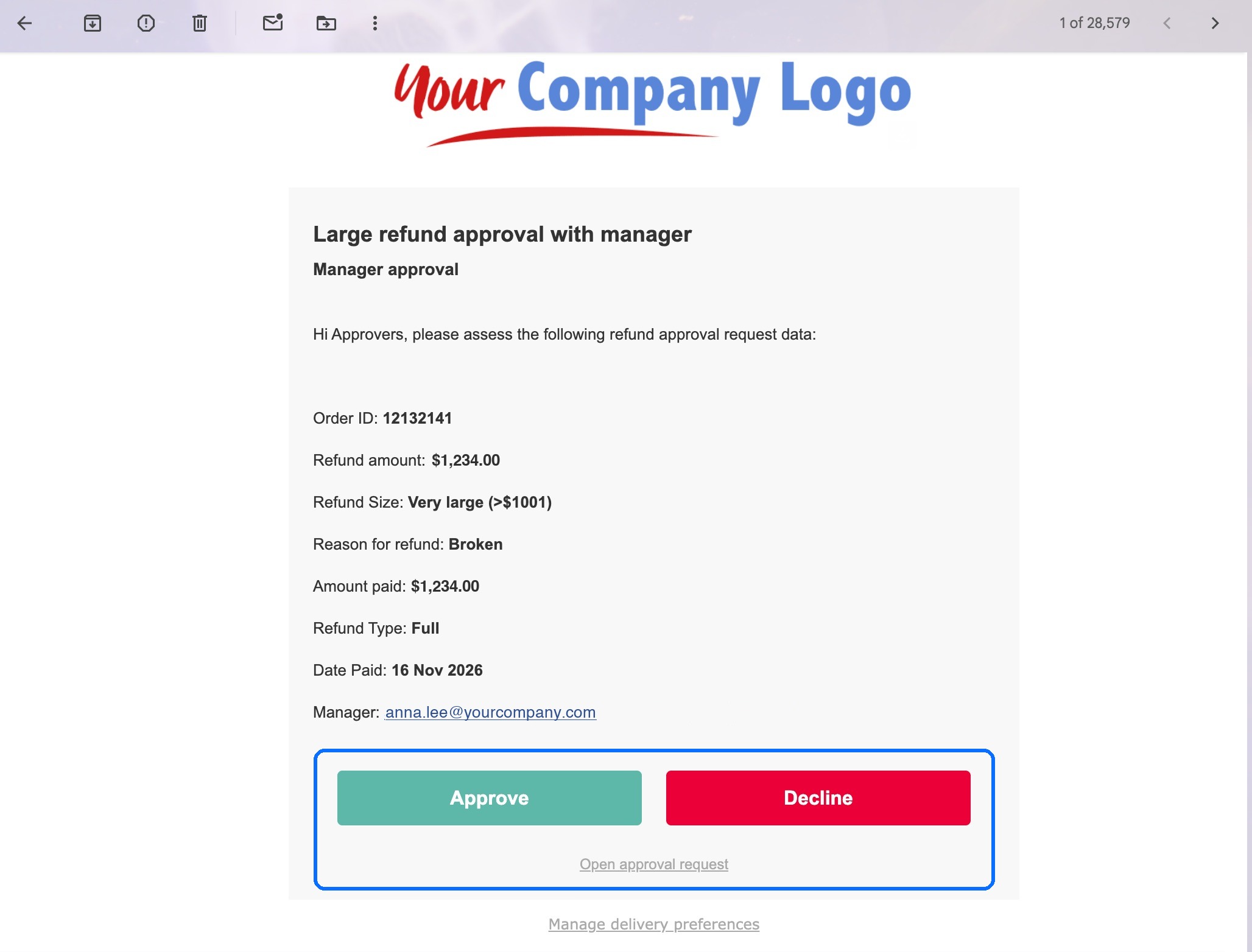
- In the approval email, click Approve or Decline, or Open approval request to review it in the approval portal first.
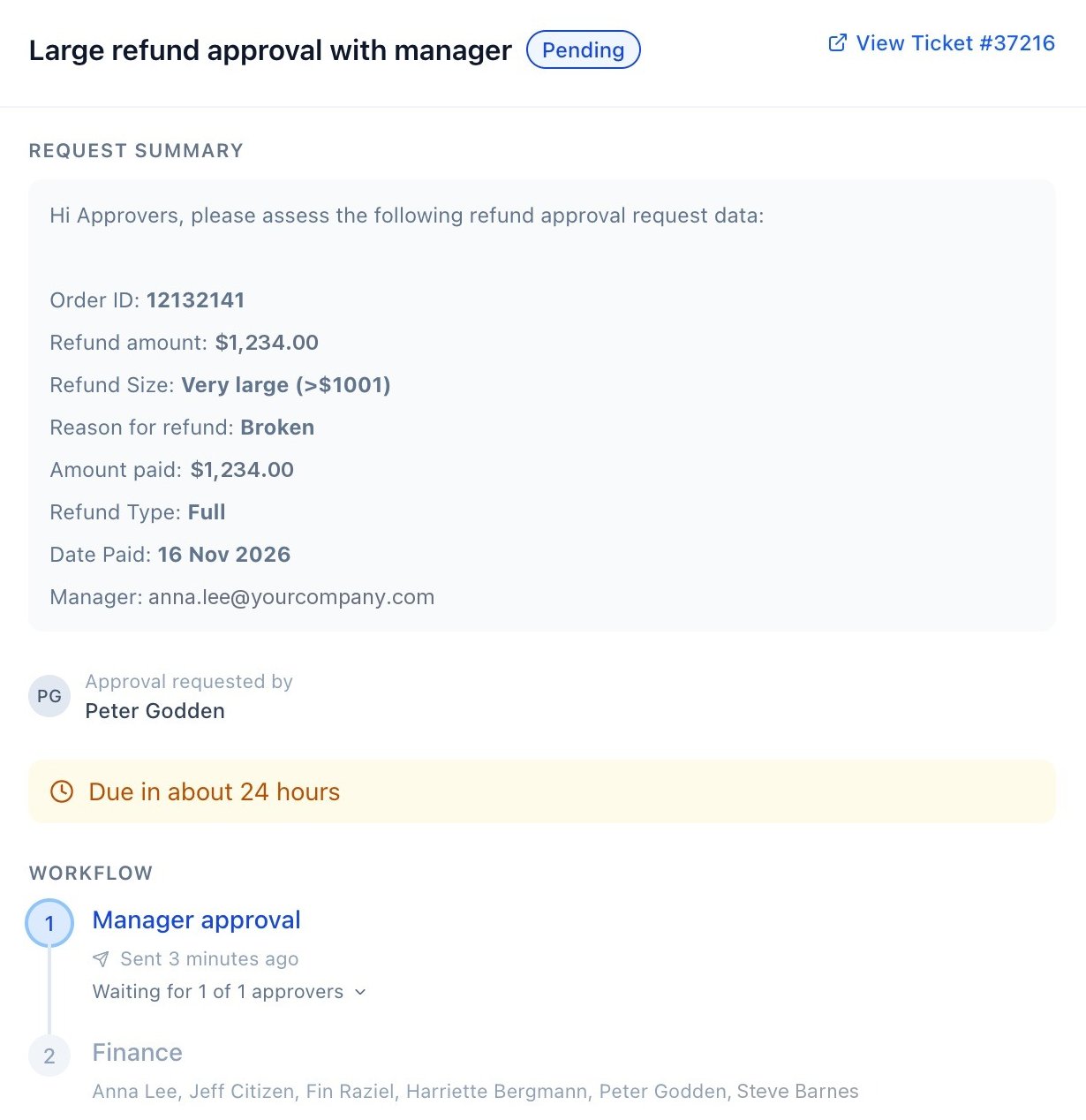
- In the portal, read the Request Summary and check the deadline. View Ticket opens the Zendesk ticket for approvers with access.
- Check Workflow to see each approval step and who is still to respond. Click the Waiting for ... approvers line to see who has responded.
- Add a note under Comment if needed, then click Approve, Decline or Abstain and confirm.
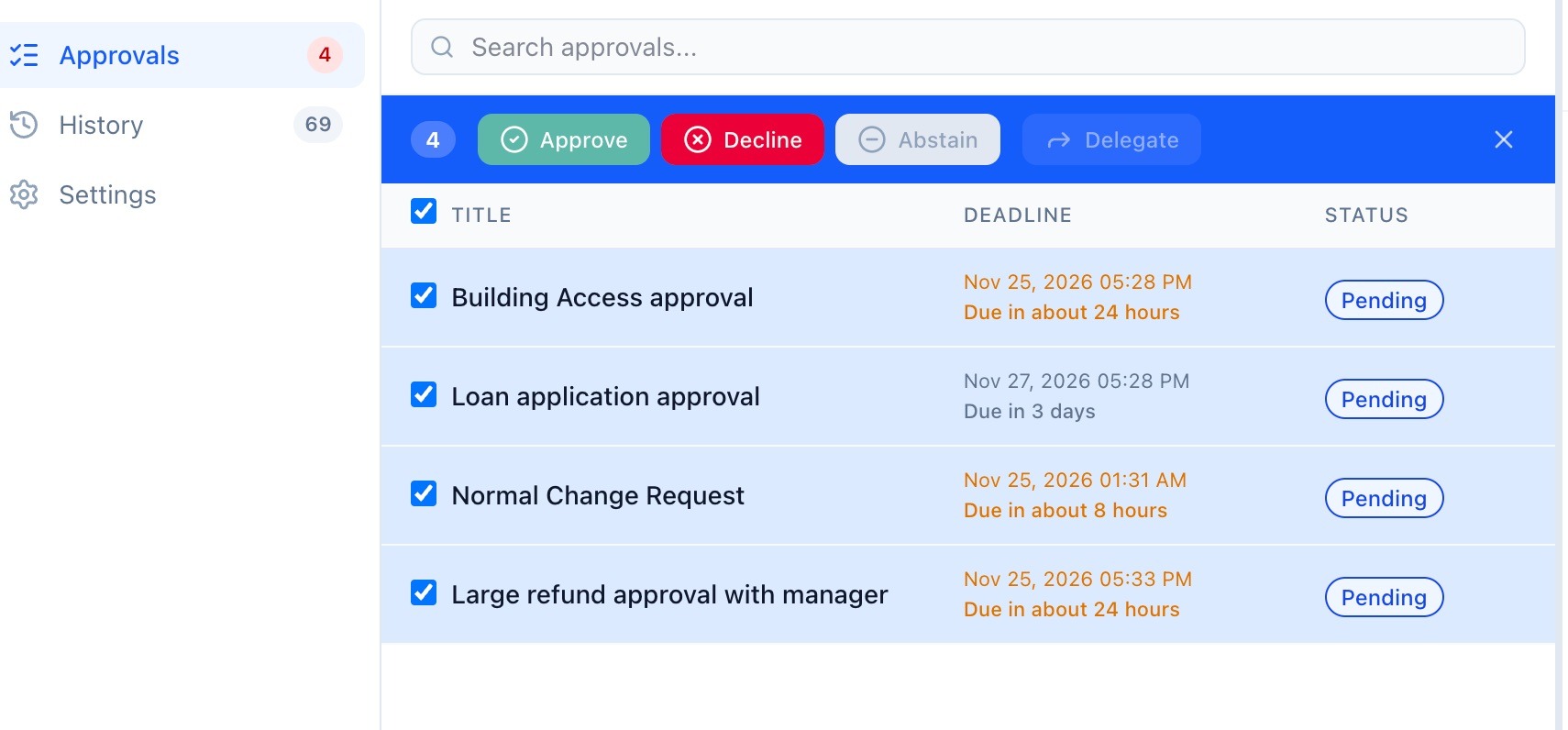
- To clear a batch, tick several approvals in the queue, or the header box for all, then use the blue action bar.
- Find past decisions under History. Choose Email, Slack or Teams delivery and set Out of office under Settings.
The people who approve requests are often not the people who work tickets. A manager signing off a refund or a facilities lead granting building access wants to see what they are agreeing to, make a call and move on. The approval portal gives them one place to do that, from any device, without learning Zendesk.
The quickest way is the SweetHawk Suite: one click installs Approve and the rest of the suite into your account, with a free trial and no credit card. You can also install Approve on its own from the Marketplace.