Quick Guides / Approve
How do I require multiple or parallel approvers on one ticket in Zendesk?
Short answer
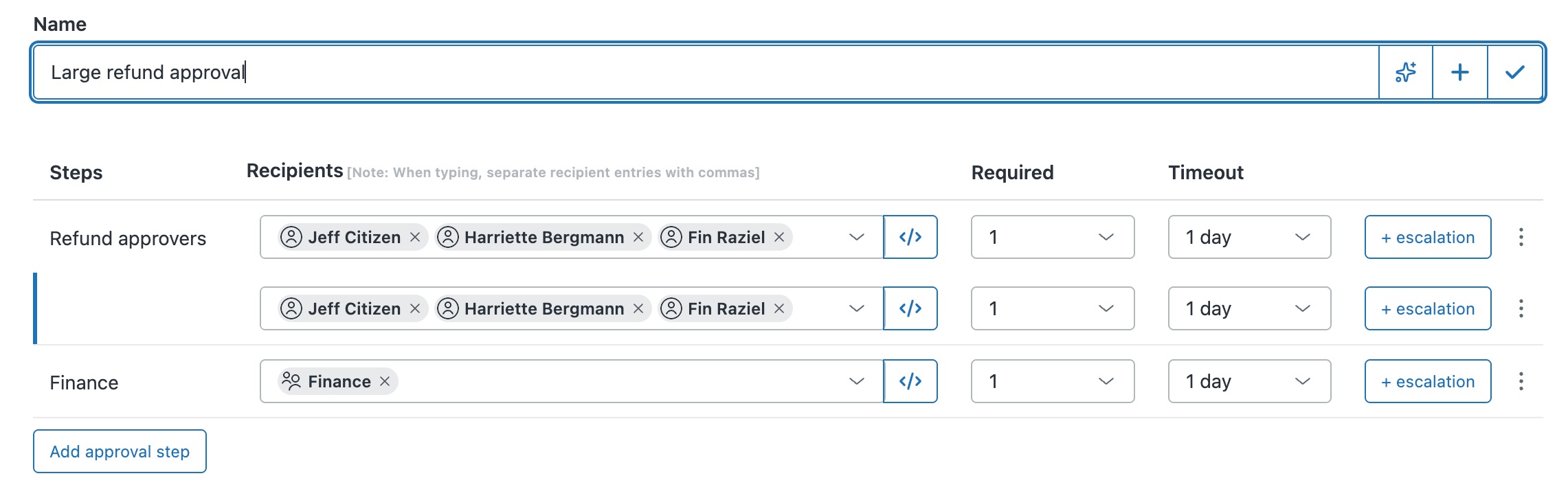
Add several approvers, or a whole group, to one step of an Approve definition, then set Required to how many must approve. They are all asked at once, and the step passes once that many have approved.
How to do it with Approve
- Open the Approve app, go to Approval definitions, and open or create the approval definition.
- Under Recipients, add every approver to one step. Recipients can be individual people, a whole Zendesk group, or someone relative to the ticket using a Liquid placeholder, such as the requester's manager or an organization field.
- Set Required to how many must approve, for example 2 for a quorum, or the full count for unanimous. Everyone is asked at once.
- Configure the Decline and Abstain buttons: any decline marks the whole approval declined, abstain removes that person from the count.
Parallel approvers suit a decision that needs more than one person but no particular order: two of the finance team, or a majority of a committee. Set how many must say yes, and the step clears as soon as that many do.
Get it in your Zendesk
The quickest way is the SweetHawk Suite: one click installs Approve and the rest of the suite into your account, with a free trial and no credit card. You can also install Approve on its own from the Marketplace.