Quick Guides / General
How do I turn on AI features (the Liquid AI assistant) in SweetHawk apps?
Short answer
AI features, including the Liquid AI assistant, are off until you enable them once for all your SweetHawk apps. In any SweetHawk app go to Settings, open the Global tab, and tick Enable AI Features in all SweetHawk Apps. The AI tools then appear across every SweetHawk app.
How to turn it on
- Open any SweetHawk app in Zendesk, for example Approve, and go to Settings.
- Open the Global tab. These settings apply to every SweetHawk app, not just the one you are in.
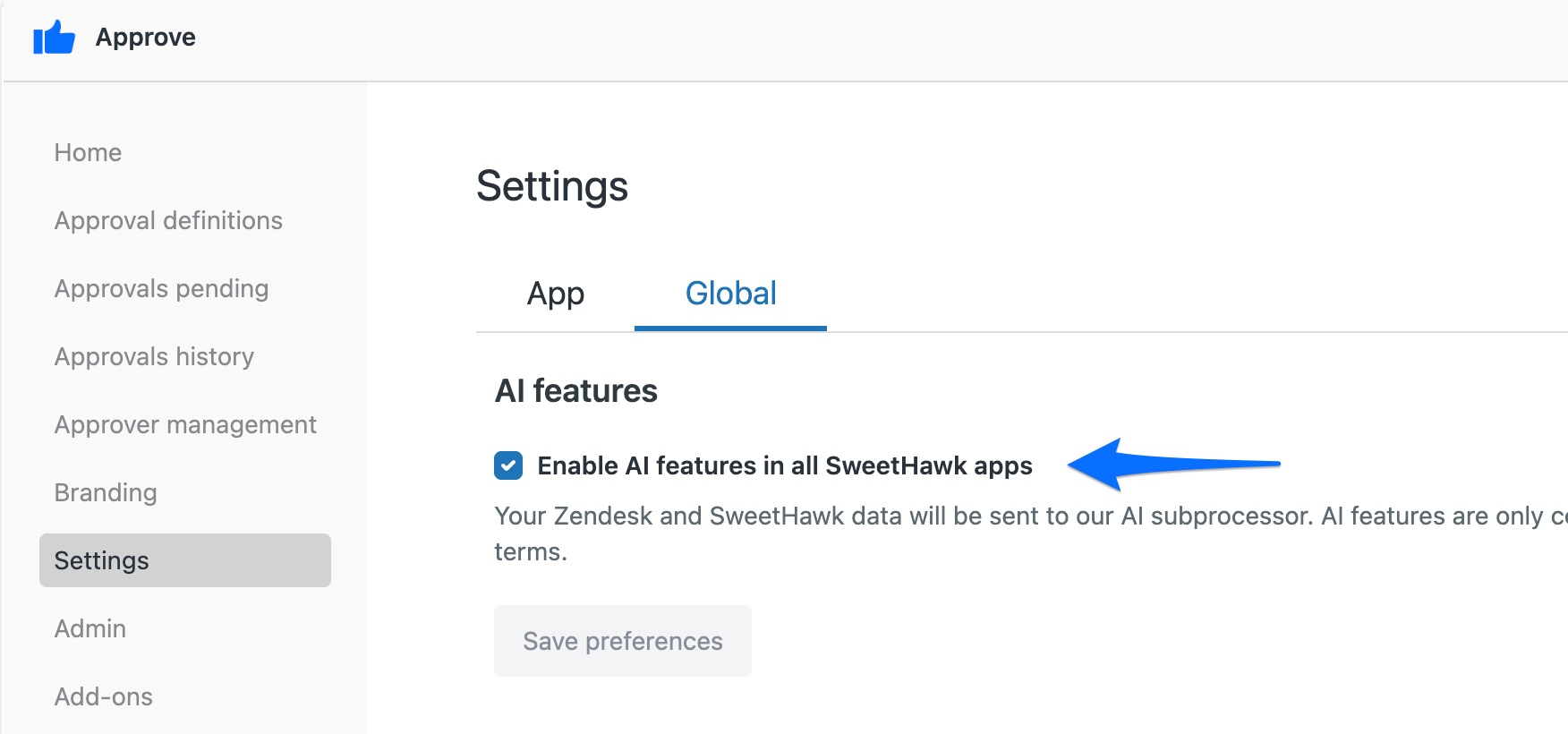
- Tick Enable AI Features in all SweetHawk Apps, then save.
- The AI tools now appear across your SweetHawk apps, such as the Liquid AI assistant at the top right of a message box when you build an approval or write any message.
AI assistance is a one-time switch. Turn it on once under the shared Global settings and every SweetHawk app you use picks it up, so you do not have to enable it app by app.