The new Tasks & Subtickets app has been out for a while now. If you've been wondering whether it's worth upgrading from the legacy version, here's why we think it is, and how your templates and task lists come across in a CSV.
Why upgrade from legacy Tasks
- Phased task listsBreak work into stages, so each set of tasks starts when the last one finishes.
- Ticket updates on any task eventSet fields, tags, status or comments when a task or list is done, with no code.
- Your data in your own fieldsNo packaged fields. Task progress goes where you choose, ready for Explore.
- Smarter templatesLiquid placeholders in task names, notes and links, and any requester on a subticket.
- Better control for adminsAn audit log, access controls and translations for tasks and lists.
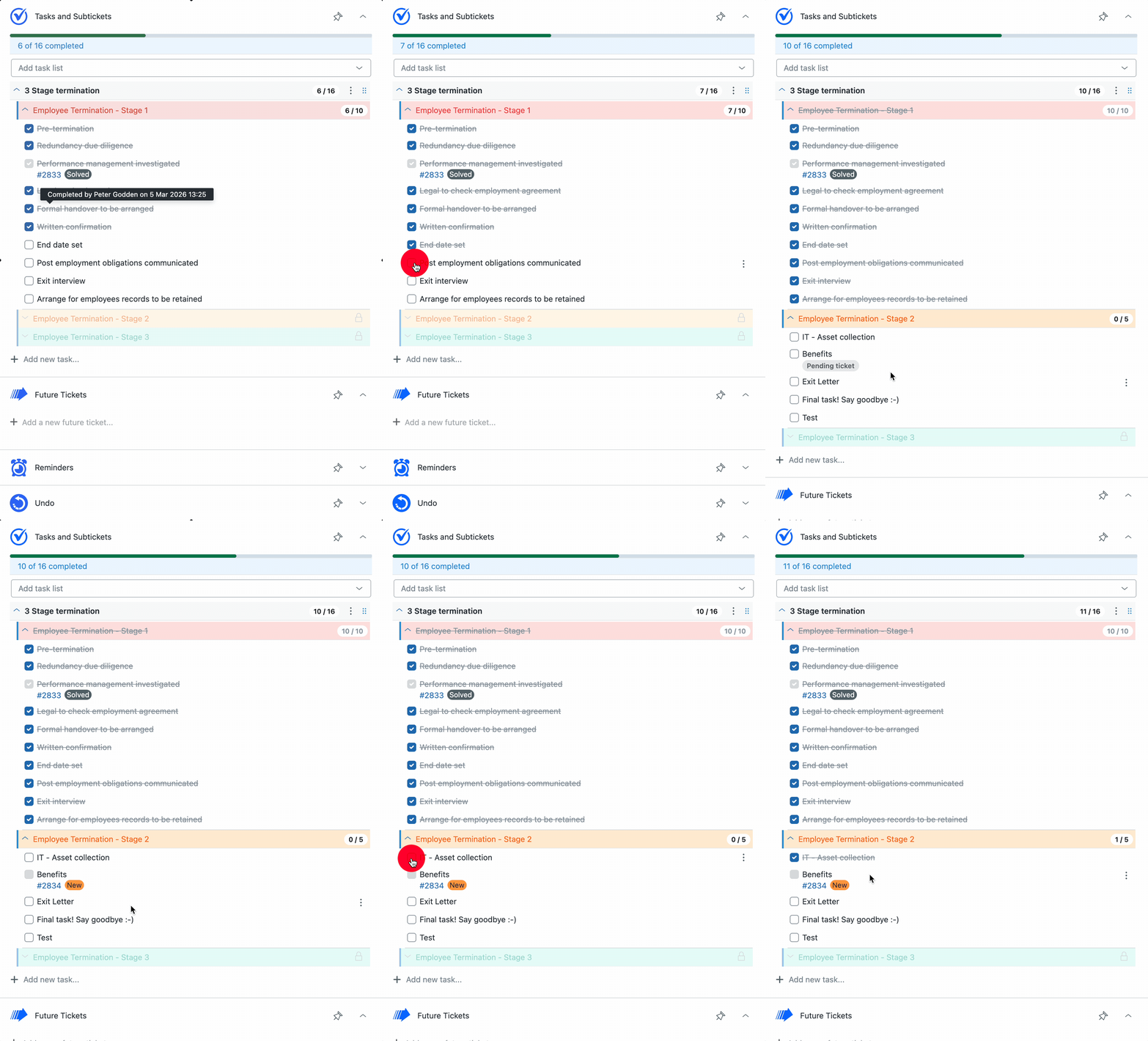
Moving takes minutes
Your templates and task lists come straight across from a CSV.
- Install the new Tasks & Subtickets app. Install Tasks & Subtickets, enter your Zendesk subdomain and approve the install in Zendesk. Use the code NOCC at checkout for a free trial, no card needed.
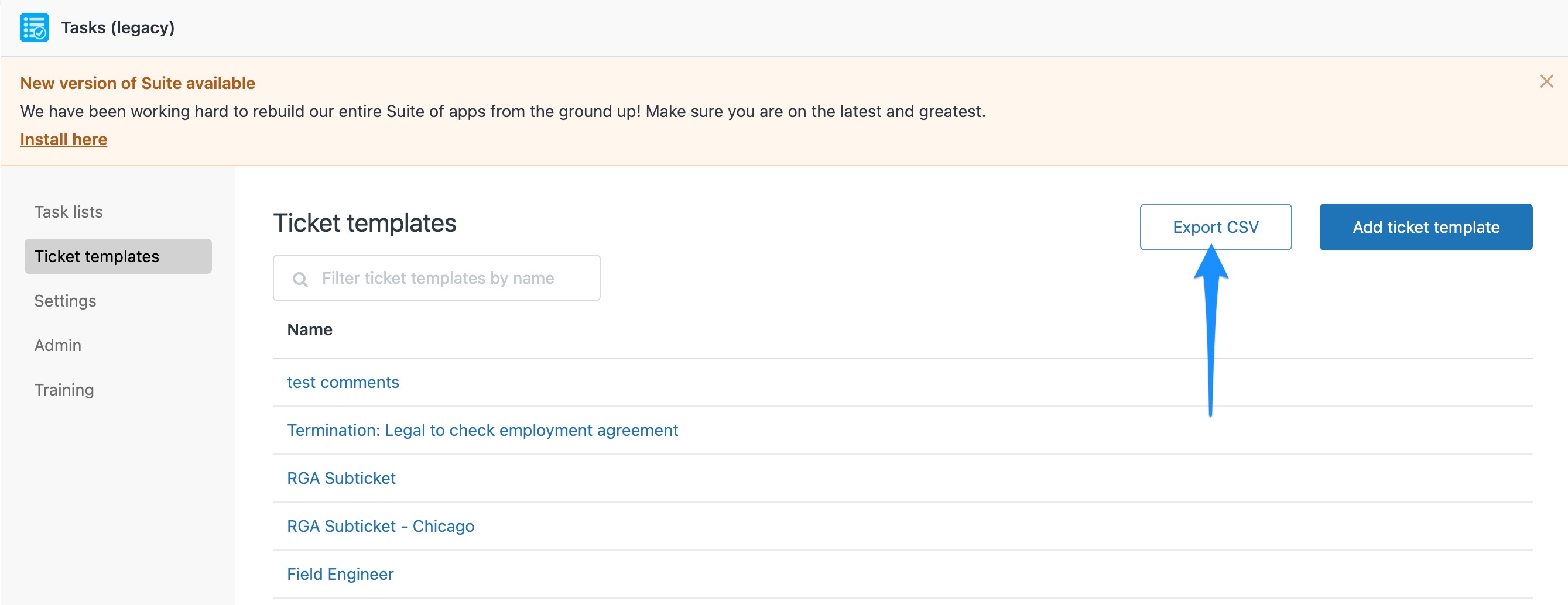
- Export your ticket templates. In the legacy app, open Ticket templates and click Export CSV.
- Always import ticket templates before task lists. Task lists find their sub-ticket templates by name. If a template isn't there yet, any task that uses that template gets left out of the list.
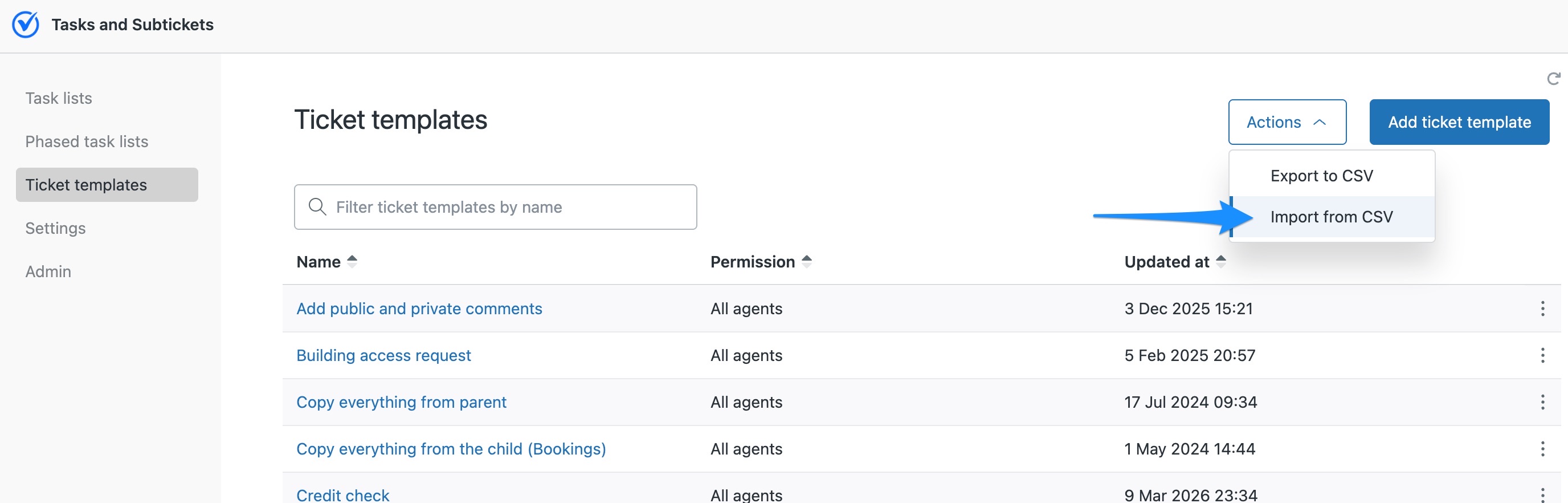
- Import your ticket templates. In the new app, open Ticket templates and choose Actions > Import from CSV.
- Export your task lists. In the legacy app, open Task lists and click Export CSV.
- Import your task lists. In the new app, open Task lists and choose Actions > Import from CSV. Imported lists don't have a Permission set yet, so edit each one and choose who can use it (for example, All agents) before agents can see it on a ticket.
- Hook up your triggers. For any list that was applied automatically, click Create trigger from the list's menu and give it the same conditions as your old trigger. Then deactivate the old trigger, so only the new app applies the list.
One thing to remember: when you switch over, disable the legacy app rather than uninstalling it. Uninstalling deletes its fields and their data.
Common questions
Can I keep both versions installed?
Yes. You can run both versions side by side while you move things across. Once everything's moved, disable the old version.
Do I have to move to the new version?
We strongly recommend it. There's already a stack of time-saving features you won't find in the legacy apps, and every new feature we build goes exclusively into the new versions. Your current app might still be doing its job, but it could be doing a lot more for you.
We'll keep supporting the legacy versions while you make the move, so you don't have to switch overnight, but there's plenty worth switching for. The sooner you move, the sooner you get the benefits, and we're here to help you get started.
Read more about moving to the new versions
Need a hand moving?
Talk to us about anything to do with moving to the new version. We'll work through it with you and help you get set up. Create a support ticket or email support@sweethawk.com.
Ready? Install the new Tasks & Subtickets app free with the code NOCC.
Get the latest from SweetHawk
Product updates, new features, and Zendesk tips. No spam, unsubscribe any time.