The new Survey app has been out for a while now. If you've been wondering whether to upgrade from the legacy version, here's why it's worth it, and how the migration assistant walks you through the move.
Why upgrade from legacy Survey
- Unlimited surveysA different survey for every situation, sent automatically by any ticket conditions you like.
- Unlimited questions, every typeStars, faces, 0 to 10, NPS, CES, dropdowns and free text. Make any question required.
- Answers on the ticketEvery response can update a ticket field, so it's in Explore, views and triggers straight away.
- Built-in reportingSee results without exporting a thing, and share reports with people outside Zendesk.
- Your brand, everywhereYour logo and sender name, your own domain per brand, and surveys inside messaging conversations.
Moving takes minutes
The legacy app has a migration assistant that walks you through every step.
- Install the new Survey app. Install Survey, enter your Zendesk subdomain and approve the install in Zendesk. Use the code NOCC at checkout for a free trial, no card needed.
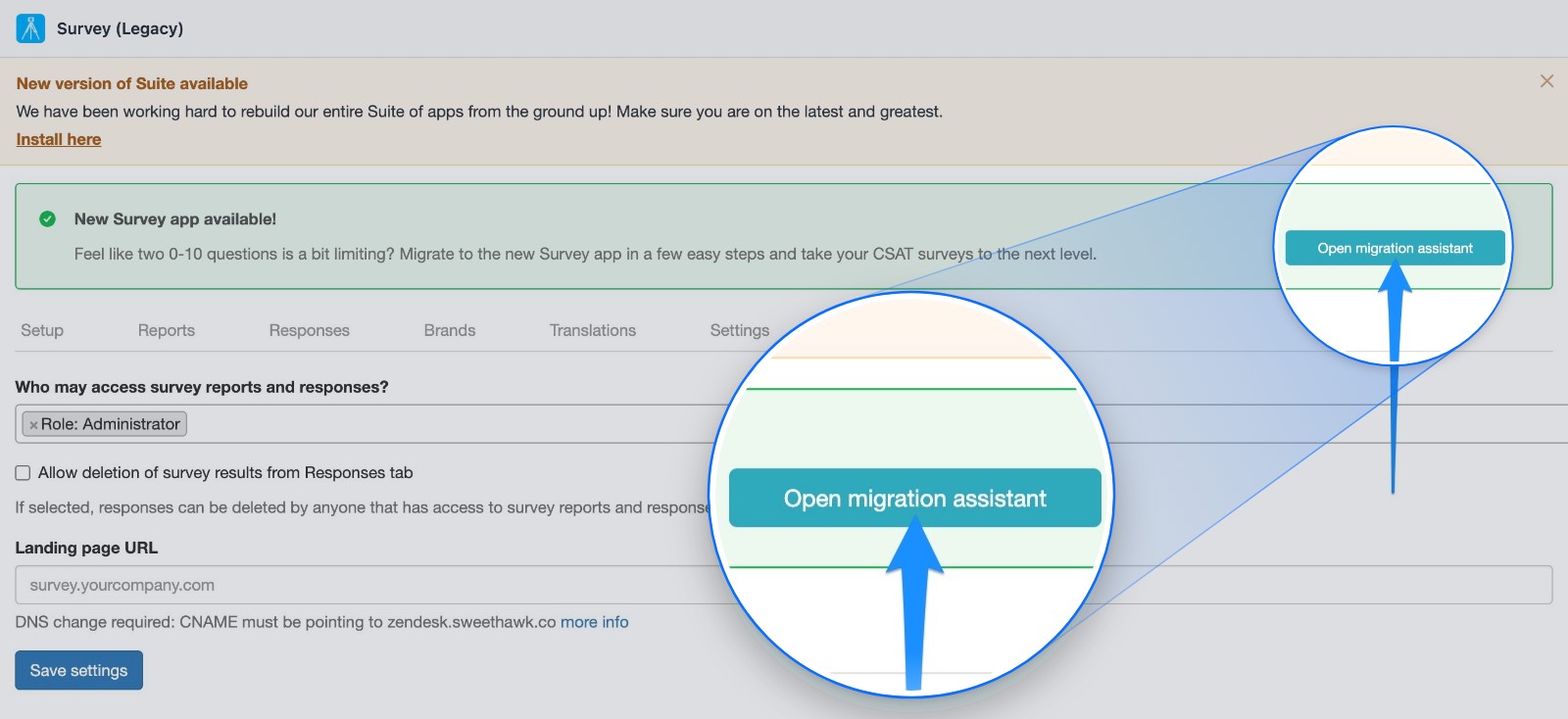
- Open the migration assistant. In your legacy Survey app, click Open migration assistant in the green New Survey app available! box at the top.
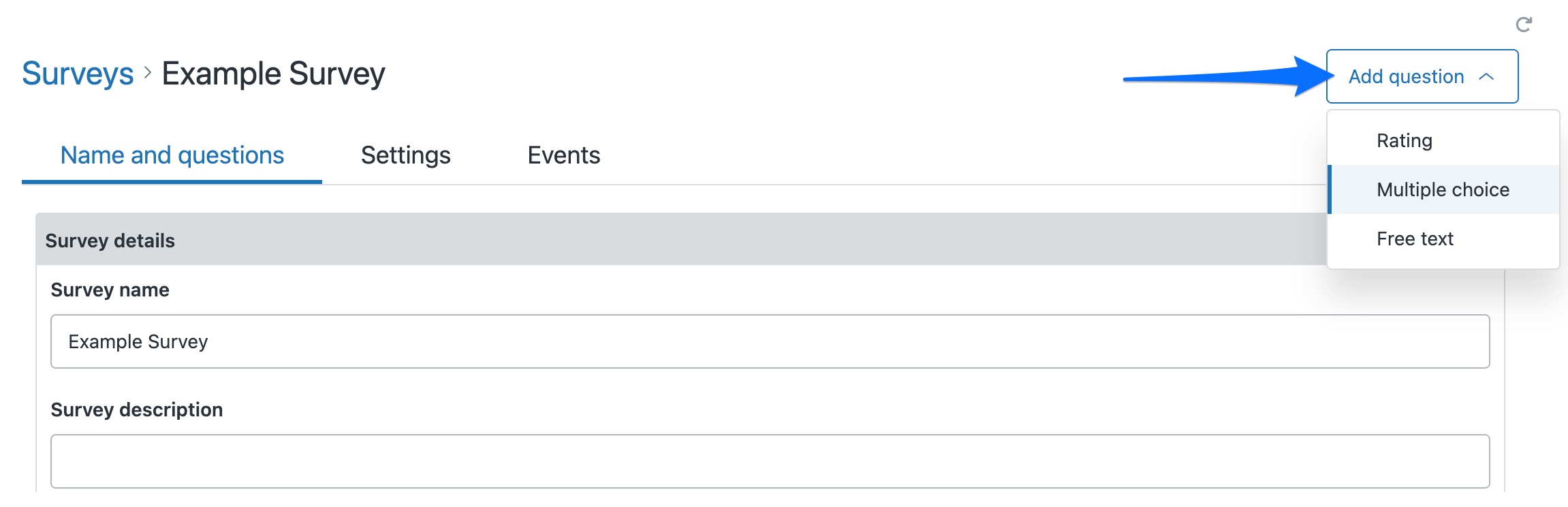
- Review your new survey. The new app starts you with a CSAT survey with an NPS question. Adjust the wording and branding to suit.
- Switch your triggers over. The assistant lists every trigger and automation that sends the legacy survey, with a link to edit each one. Swap in the new survey snippet,
{{dc.survey_csat_snippet}}. - Bring your responses across. In the new Survey app, go to Admin > Application API and click Copy token. Paste it into the assistant and click Sync responses.
Common questions
Can I keep both versions installed?
Yes. You can run both versions side by side while you move things across. Once everything's moved, disable the old version.
Do I have to move to the new version?
We strongly recommend it. There's already a stack of time-saving features you won't find in the legacy apps, and every new feature we build goes exclusively into the new versions. Your current app might still be doing its job, but it could be doing a lot more for you.
We'll keep supporting the legacy versions while you make the move, so you don't have to switch overnight, but there's plenty worth switching for. The sooner you move, the sooner you get the benefits, and we're here to help you get started.
Read more about moving to the new versions
Need a hand moving?
Talk to us about anything to do with moving to the new version. We'll work through it with you and help you get set up. Create a support ticket or email support@sweethawk.com.
Ready? Install the new Survey app free with the code NOCC.

Get the latest from SweetHawk
Product updates, new features, and Zendesk tips. No spam, unsubscribe any time.