It's been a while since we released the new Timers app. If you've ever wondered whether it's worth upgrading from SLA Timers, here are the reasons we think it is, and how to move your timers across.
Why upgrade from SLA Timers
- Unlimited timers per ticketResponse, resolution, vendor, compliance: run them all at once, each with its own name.
- Your business hours, per timerEvery timer gets its own schedule and holidays, so a 24/7 clock and a business-hours clock can share a ticket.
- Pause and resumeStop the clock while you're waiting on the customer, using your own trigger conditions.
- Warn, then escalateUpdate the ticket before a timer's due and again when it ends. One timer replaces a stack of reminder timers.
- Timer data on the ticketWrite timer details to ticket fields for views, triggers and Explore.
Moving takes minutes
Bring in your business hours, set up what each timer should do, recreate your timers, then connect them to the triggers you already have.
- Install the new Timers app. Install Timers, enter your Zendesk subdomain and approve the install in Zendesk. Use the code NOCC at checkout for a free trial, no card needed.
- Import your schedules. Go to Schedules and choose Actions > Import schedules to bring in your business hours from Zendesk.
- Set up your workflows. A workflow is what happens to the ticket while a timer runs, and one workflow can be shared by as many timers as you like. Go to Workflows, click Add workflow, and add the tag your old timer added as a ticket update for when the timer ends.
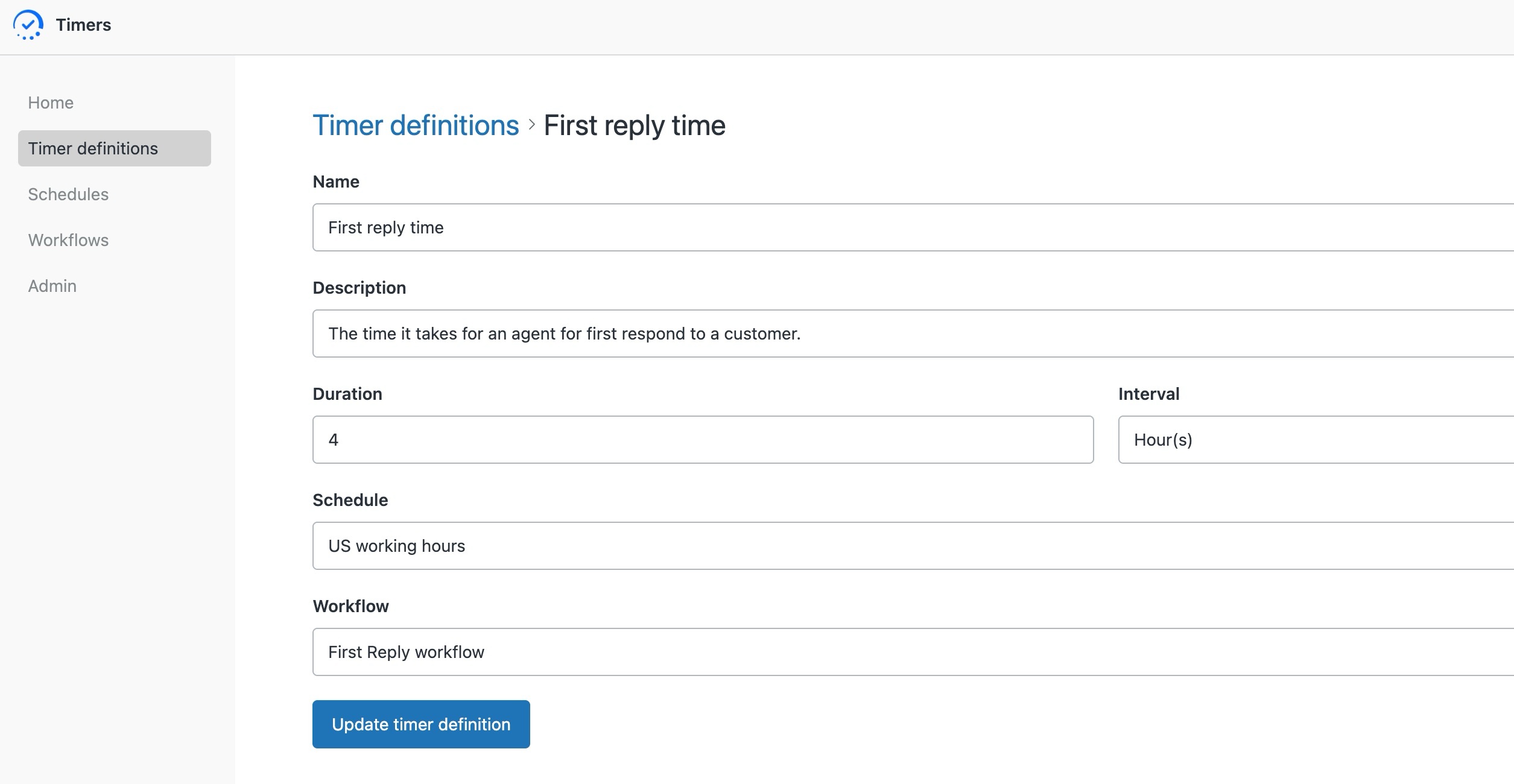
- Recreate your timers. In Timer definitions, give each one the same name and duration, then pick the Schedule and Workflow you've set up.
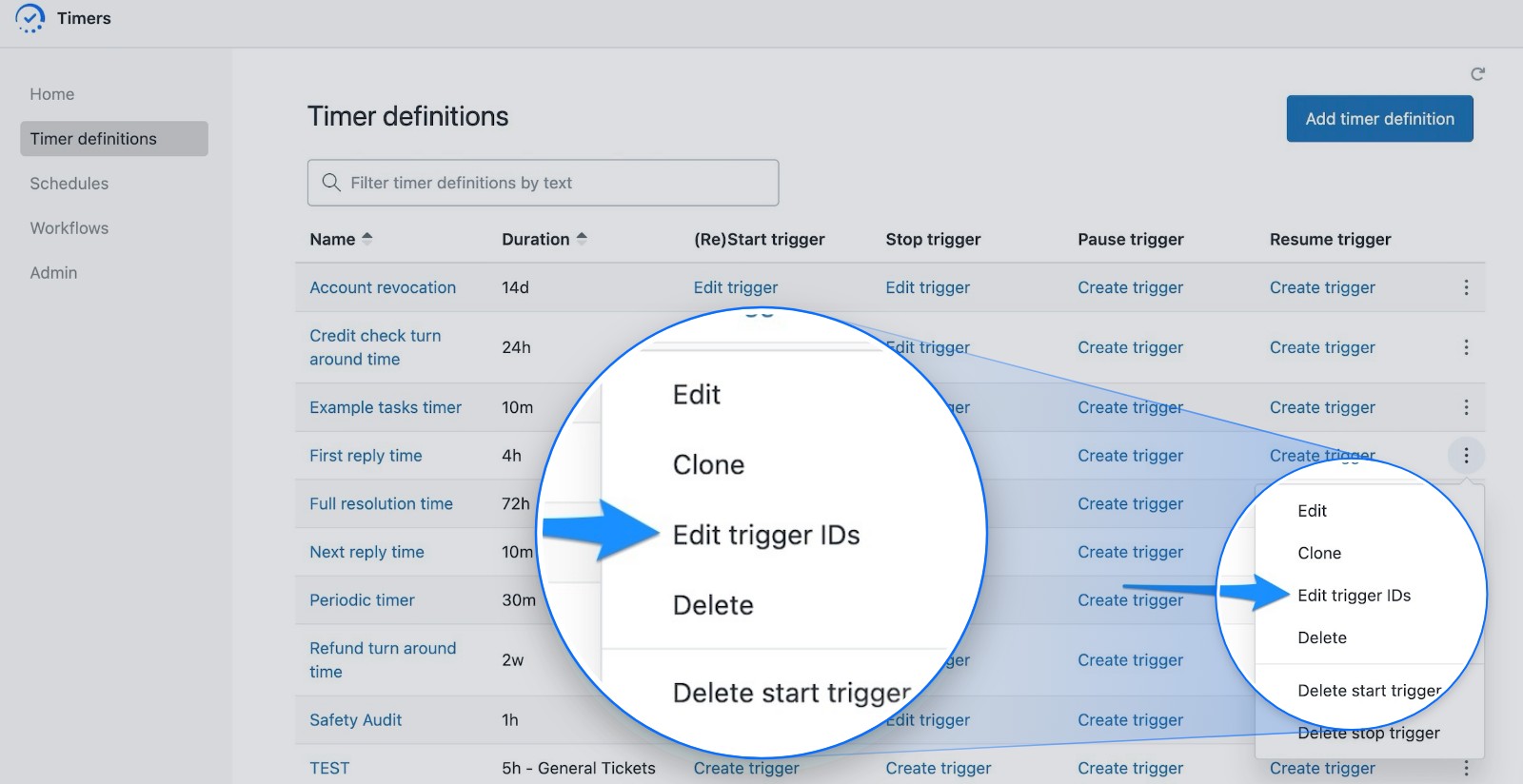
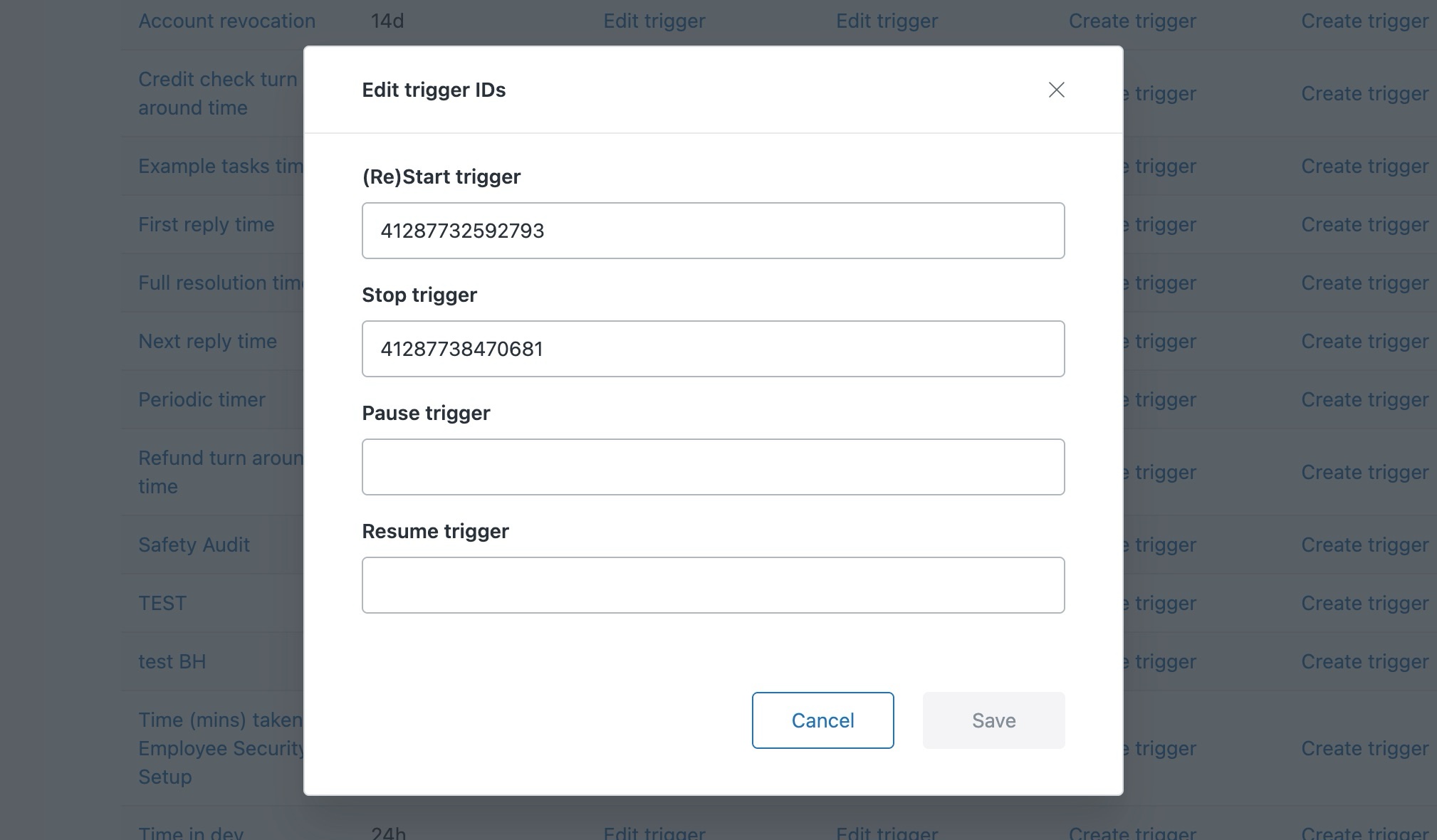
- Hook up your existing triggers. No need to rebuild them. In SLA Timers, open the timer, click Edit trigger IDs and copy the start and stop trigger IDs. In the new app, open the menu at the end of the matching timer's row, choose Edit trigger IDs and paste them in. The new timer wires itself into those triggers.
- Switch over. Once your timers are running in the new app, turn SLA Timers off.
Common questions
Can I keep both versions installed?
Yes. You can run both versions side by side while you move things across. Once everything's moved, disable the old version.
Do I have to move to the new version?
We strongly recommend it. There's already a stack of time-saving features you won't find in the legacy apps, and every new feature we build goes exclusively into the new versions. Your current app might still be doing its job, but it could be doing a lot more for you.
We'll keep supporting the legacy versions while you make the move, so you don't have to switch overnight, but there's plenty worth switching for. The sooner you move, the sooner you get the benefits, and we're here to help you get started.
Read more about moving to the new versions
Need a hand moving?
Talk to us about anything to do with moving to the new version. We'll work through it with you and help you get set up. Create a support ticket or email support@sweethawk.com.
Ready? Install the new Timers app free with the code NOCC.
Get the latest from SweetHawk
Product updates, new features, and Zendesk tips. No spam, unsubscribe any time.