Field Rules has been out for a while now. If you've been wondering whether to move across from Field Conditions or Change Manager, here's why it's worth it, and how the migration assistant does most of the work.
Why upgrade from Field Conditions or Change Manager
- Rules that take actionSet, add or remove field values, apply a macro, or run an action in another SweetHawk app.
- One rule, many fieldsCover a whole group of fields in one rule, with exceptions. What took 20 rules can take a few.
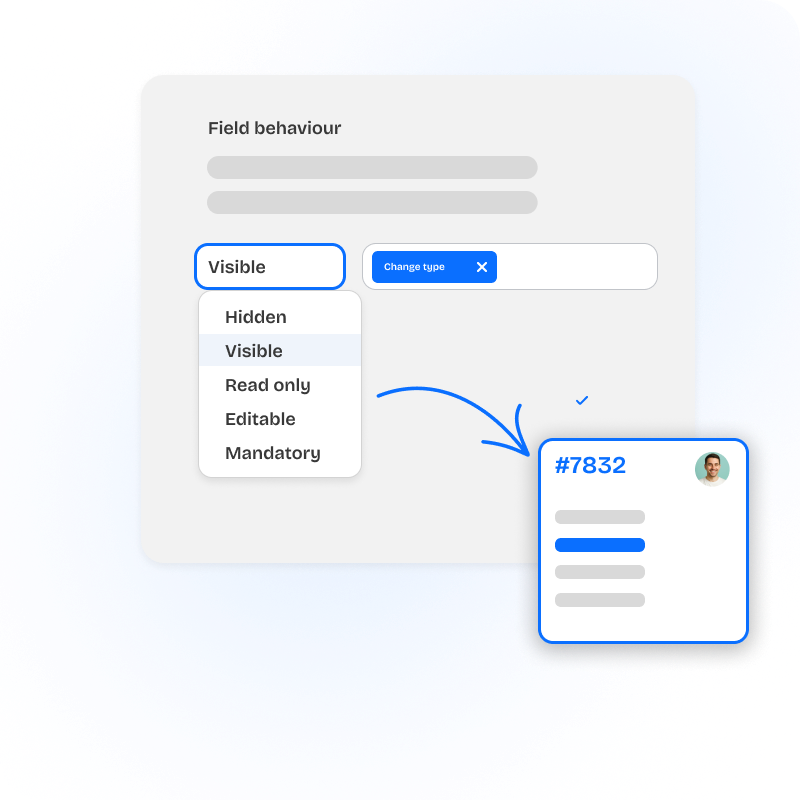
- More field behavioursVisible, editable and optional, alongside hidden, read-only and required.
- Any ticket types you likeChange Manager only adds Change. With Field Rules, add Change, Project, Project sub-task or whatever you need, and map each one back to Zendesk's own Type field however you like.
- Rule orderingDecide which rule wins when two apply to the same field.
- An audit logSee every change anyone makes to your rules.
Moving is easy
Field Rules is a separate app, so you can set it up and test it before switching anything off.
- Install the new Field Rules app. Install Field Rules, enter your Zendesk subdomain and approve the install in Zendesk. Use the code NOCC at checkout for a free trial, no card needed.
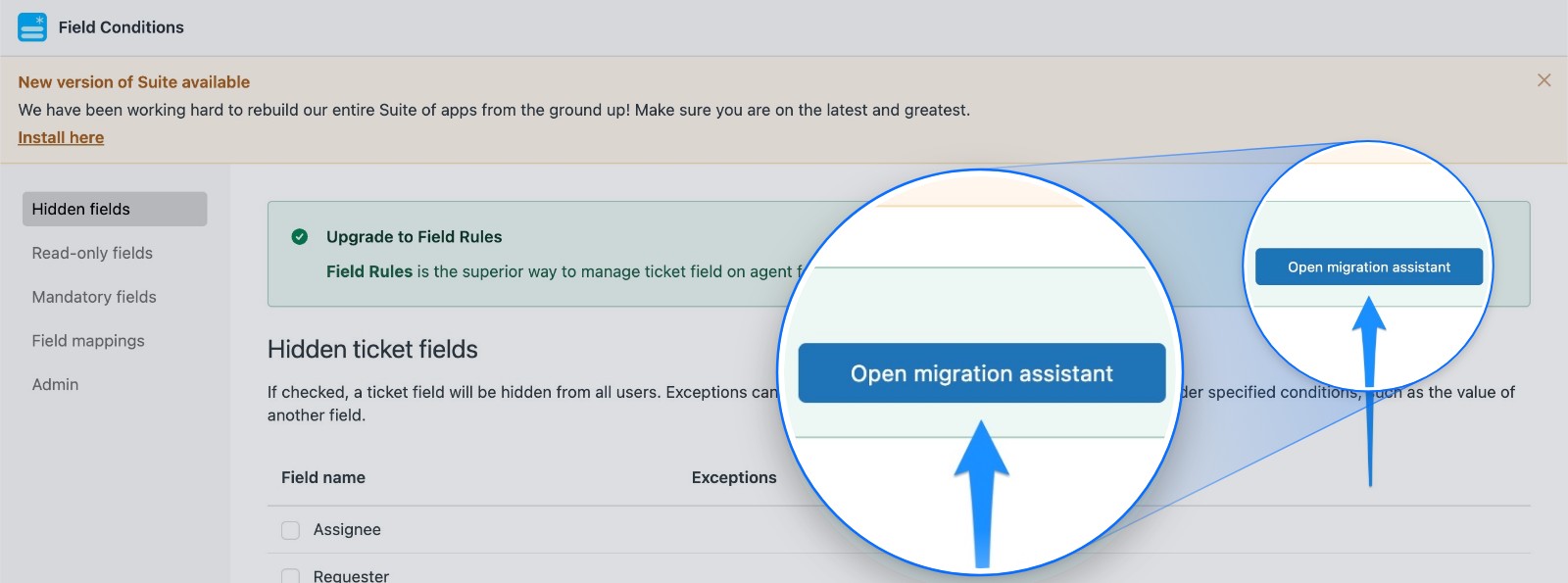
- Coming from Field Conditions? Click Open migration assistant in the green Upgrade to Field Rules box, then follow its instructions.
 Expect fewer rules on the other side. One Field Rules rule can cover many fields, so 43 Field Conditions hiding fields from the same people can come across as a single rule.
 - Coming from Change Manager? You rebuild what it did with rules, and get far more control.
Map your ticket types. Use your own Ticket type field with Change and any other types you want. For each type, go to Rules > Add rule, set When to that ticket type, and under Ticket actions set Zendesk's Type field to match. Still linking incidents to problems or setting due dates on tasks? Keep the Type field on the form under Ticket type, and add one more rule to hide it from agents.
Show change fields only on change tickets. Set your change fields to hidden, with exceptions that show them when Ticket type is Change. - Switch over. Turn the old app off once your rules are in place. Don't run both at once. Pick a quiet time, then check each form shows and hides the right fields.
Common questions
Can I keep both versions installed?
Yes, while you set up and test Field Rules. Once your rules are in place, turn the old app off. Showing and hiding fields should live in one app, so problems are easy to track down.
Do I have to move to the new version?
We strongly recommend it. There's already a stack of time-saving features you won't find in the legacy apps, and every new feature we build goes exclusively into the new versions. Your current app might still be doing its job, but it could be doing a lot more for you.
We'll keep supporting the legacy versions while you make the move, so you don't have to switch overnight, but there's plenty worth switching for. The sooner you move, the sooner you get the benefits, and we're here to help you get started.
Read more about moving to the new versions
Need a hand moving?
Talk to us about anything to do with moving to the new version. We'll work through it with you and help you get set up. Create a support ticket or email support@sweethawk.com.
Ready? Install the new Field Rules app free with the code NOCC.

Get the latest from SweetHawk
Product updates, new features, and Zendesk tips. No spam, unsubscribe any time.