
Approvals can now be completed by your team in Slack
Same request, same buttons, in the place your approvers already have open.
October 16, 2025
An approval request used to arrive in one place: the approver's inbox. That's fine if they live in their inbox. Plenty of people don't, and a ticket sits waiting while a request they never saw goes stale.
Approve can now send the request to Slack instead.
What the approver sees
A direct message with everything they'd have got by email: what's being asked, who asked for it, the ticket it belongs to, and the buttons to approve, decline, abstain or comment. They press one, and that's the decision made. It writes straight back to the ticket, same as it always did, so agents and admins see it in Zendesk without doing anything differently.
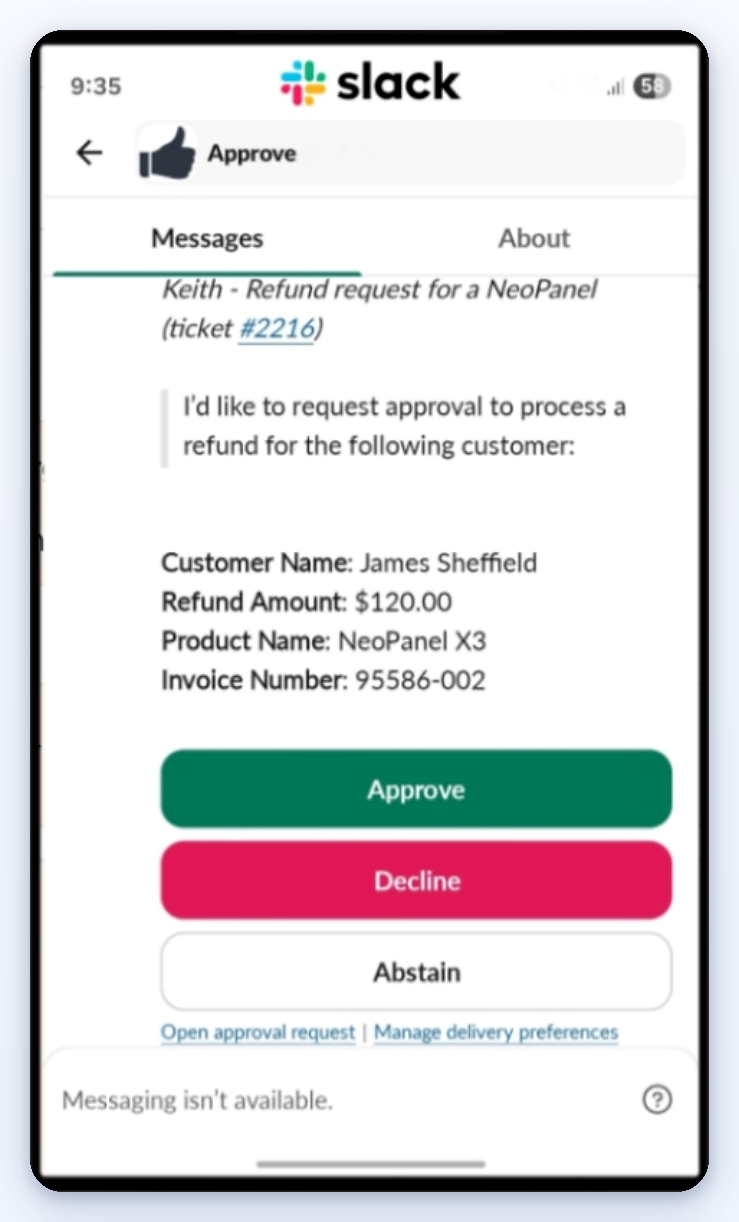
If a request is too long for a single Slack message, Approve attaches the full thing as a PDF in the thread, or links through to the portal. Nothing arrives half-cut.
Turning it on
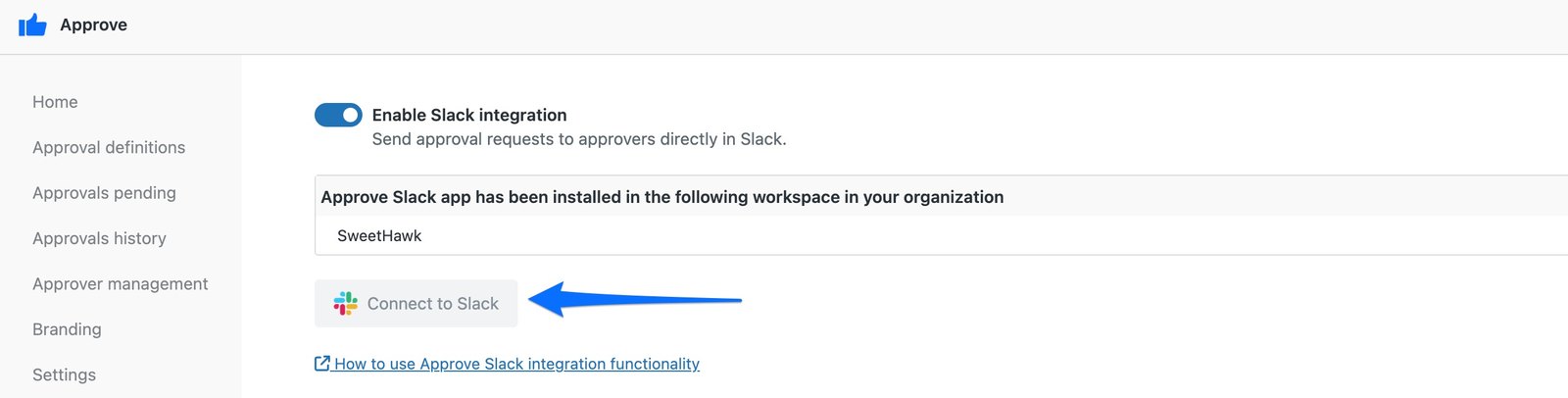
In Approve's admin, open Add-ons, switch on Enable Slack integration, then Connect to Slack and authorise the workspace. That's the whole setup.
From then on it matches people up for you. If an approver exists in your Slack workspace, their requests go to Slack. If they don't, they keep getting email. Nobody has to be configured one by one.
Your custom button labels come along too. If your approvals say Authorise and Reject rather than Approve and Decline, that's what shows up in Slack.
Approvers who'd rather not get them in Slack can opt out themselves, from Manage delivery preferences at the bottom of an approval email or in the approver portal. And if you ever need to know how a particular request went out, open the ticket, expand Waiting for x of x approvers and each approver carries an icon: an envelope for email, the Slack mark for Slack.
The difference it makes
It's a small change that shows up in your cycle times. Approvals that used to sit overnight get answered in the time it takes someone to read a message, and your agents spend less of the week reminding people that something is waiting on them.
Want a hand setting it up? Talk to support and we'll walk you through it.

Get the latest from SweetHawk
Product updates, new features, and Zendesk tips. No spam, unsubscribe any time.